
Connecting AWS to Landfall
Beacon, the room's AI agent, reads your CloudWatch metrics and logs through a read-only IAM role you create in your own account. Landfall assumes the role at read time, so no long-lived key leaves your account, and deleting the role ends Landfall's access.
- As a source: an IAM role Landfall assumes (recommended), or an access key for a read-only IAM user. Beacon reads CloudWatch metrics and logs, and GuardDuty, Security Hub and WAF once the role allows it.
- As a trigger: a CloudWatch alarm opens a war room through SNS and a small forwarding Lambda, with your organization's ingest token. See CloudWatch alerts.
What you'll need
- AWS credentials allowed to create an IAM role and a customer-managed policy in the account you're connecting.
- An admin seat on your Landfall organization. The Integrations page is admin-only.
- The region your CloudWatch data lives in. Each connection reads one region.
1. Start the IAM role wizard in Landfall
The wizard writes the two policy documents for you. The permission policy it hands you is scoped to exactly the AWS actions Landfall's CloudWatch reads use, not the broad AWS-managed ReadOnlyAccess policy the command-line path still uses.
Integrations → Context sources → AWS (CloudWatch) → IAM role (recommended)
Open Integrations in the left menu and pick AWS (CloudWatch) under Context sources. The panel asks How do you want to authenticate? Choose IAM role (recommended).
app.landfalls.ai · Integrations · AWS (CloudWatch)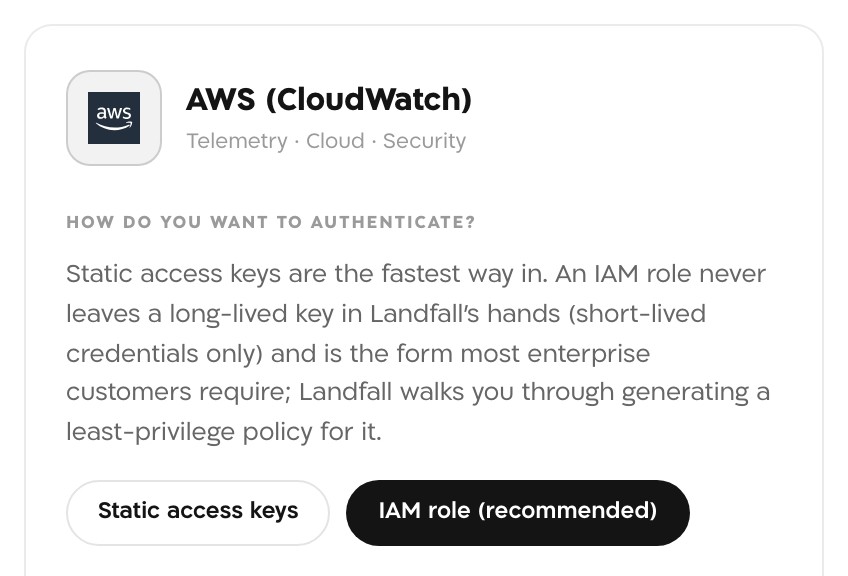
The AWS (CloudWatch) panel before you choose how to connect. 1. Your external id
Landfall immediately generates a high-entropy external id for this connection; you never type or choose one yourself. It goes into the trust policy in the next section. Start over (generate a new external id) replaces it, and any trust policy you already copied stops matching.
2. Trust policy
The wizard shows a complete trust-policy document that already names Landfall's AWS principal and the external id from step 1. One click copies it.
app.landfalls.ai · Integrations · AWS (CloudWatch) · IAM role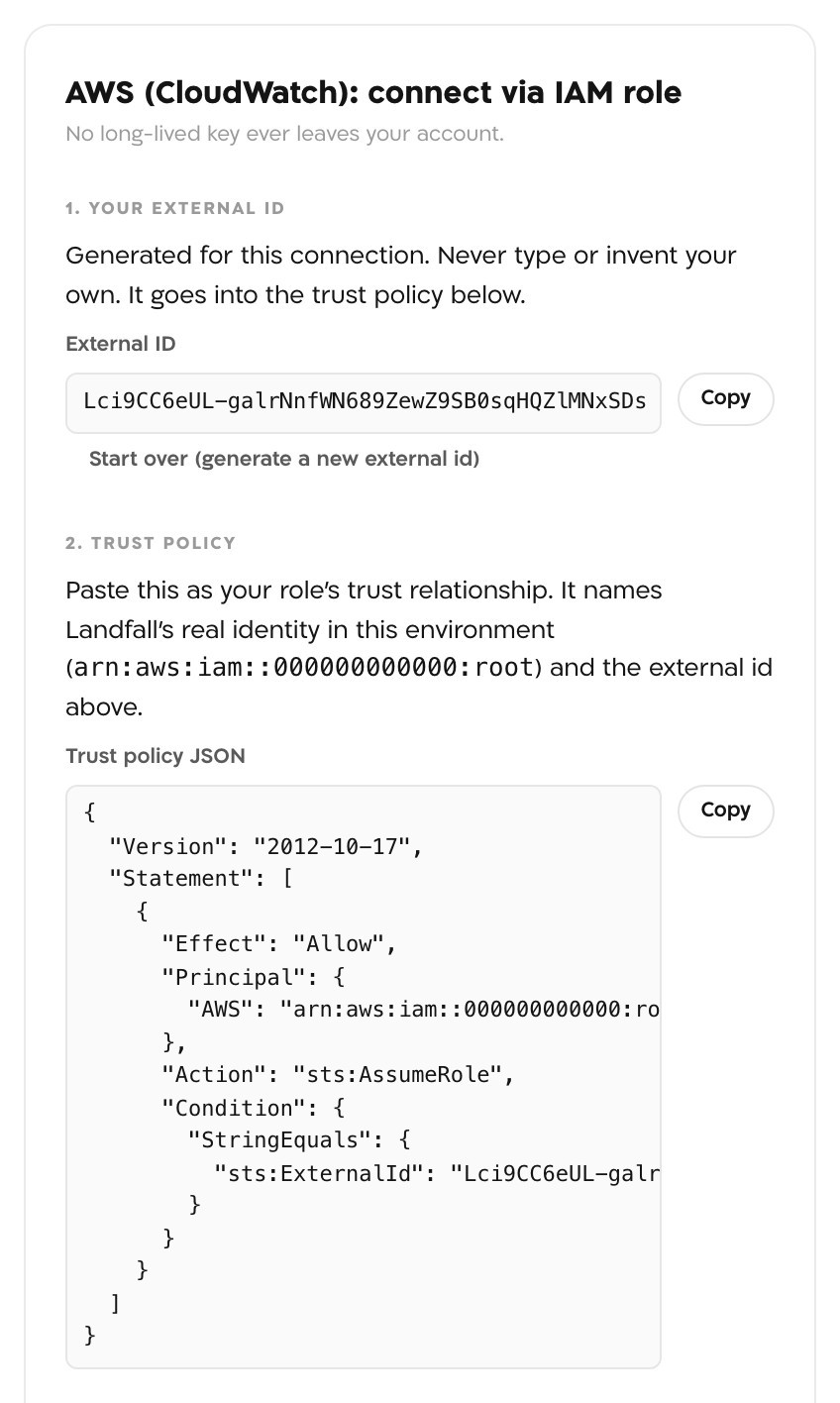
The external id and the trust policy, generated for this connection. Captured on a local test stack, so the principal shows the placeholder account 000000000000; yours names Landfall's AWS account. 3. Permission policy
The base policy grants the six CloudWatch metrics and logs actions Landfall's reads use. Three choices shape the rest:
- Log group names/ARNs (optional, one per line) scopes the two logs read actions to those groups, for example arn:aws:logs:us-east-1:123456789012:log-group:/my-app. Left blank, they are account-wide. The metrics actions and logs:DescribeLogGroups are always account-wide, because AWS does not let them be scoped, and the wizard says so under the policy.
- Architecture map (recommended) is on by default. It adds the ECS and load-balancer discovery actions behind the architecture map Landfall builds daily. Without it the map stays empty for this account.
- Optional capabilities is off by default. It adds ecs:DescribeServices and cloudtrail:LookupEvents, which Beacon uses when they are there.
One click copies the finished JSON.
app.landfalls.ai · Integrations · AWS (CloudWatch) · IAM role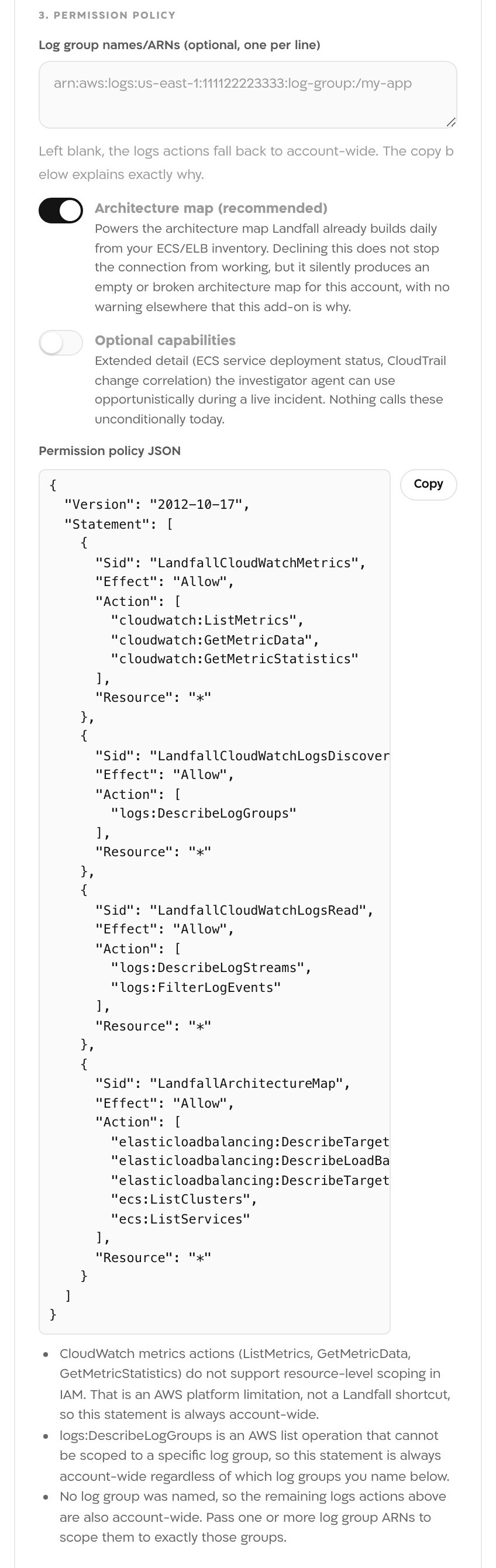
The permission policy with the architecture map add-on on and no log group named, so the notes under it say which statements stay account-wide.
2. Create the role in your AWS account
Use the two documents from the wizard. Its own section 4. Create the role in AWS repeats these steps.
IAM → Roles → Create role → Custom trust policy
Paste the trust policy and choose Next.
Attach the permission policy
On the permissions step, choose Create policy. It opens a new tab. On its JSON tab, paste the permission policy, name it landfall-readonly-policy and create it. Back in the role wizard, attach that policy.
Copy the role ARN
Name the role landfall-readonly and create it. Open the role and copy its ARN, which looks like arn:aws:iam::123456789012:role/landfall-readonly.
From the command line instead, save the two documents as trust-policy.json and permission-policy.json first:
aws iam create-role \
  --role-name landfall-readonly \
  --assume-role-policy-document file://trust-policy.json

aws iam create-policy \
  --policy-name landfall-readonly-policy \
  --policy-document file://permission-policy.json

aws iam attach-role-policy \
  --role-name landfall-readonly \
  --policy-arn <arn from the create-policy output>
Either way you get a reusable, versioned customer-managed policy attached to the role, which is AWS's recommended pattern for a role a third party assumes, rather than an inline policy.
3. Finish in Landfall
5. Paste the resulting role ARN
Back in the wizard, fill Role ARN and Region. The region is filled in for you when this Landfall deployment suggests one.
app.landfalls.ai · Integrations · AWS (CloudWatch) · IAM role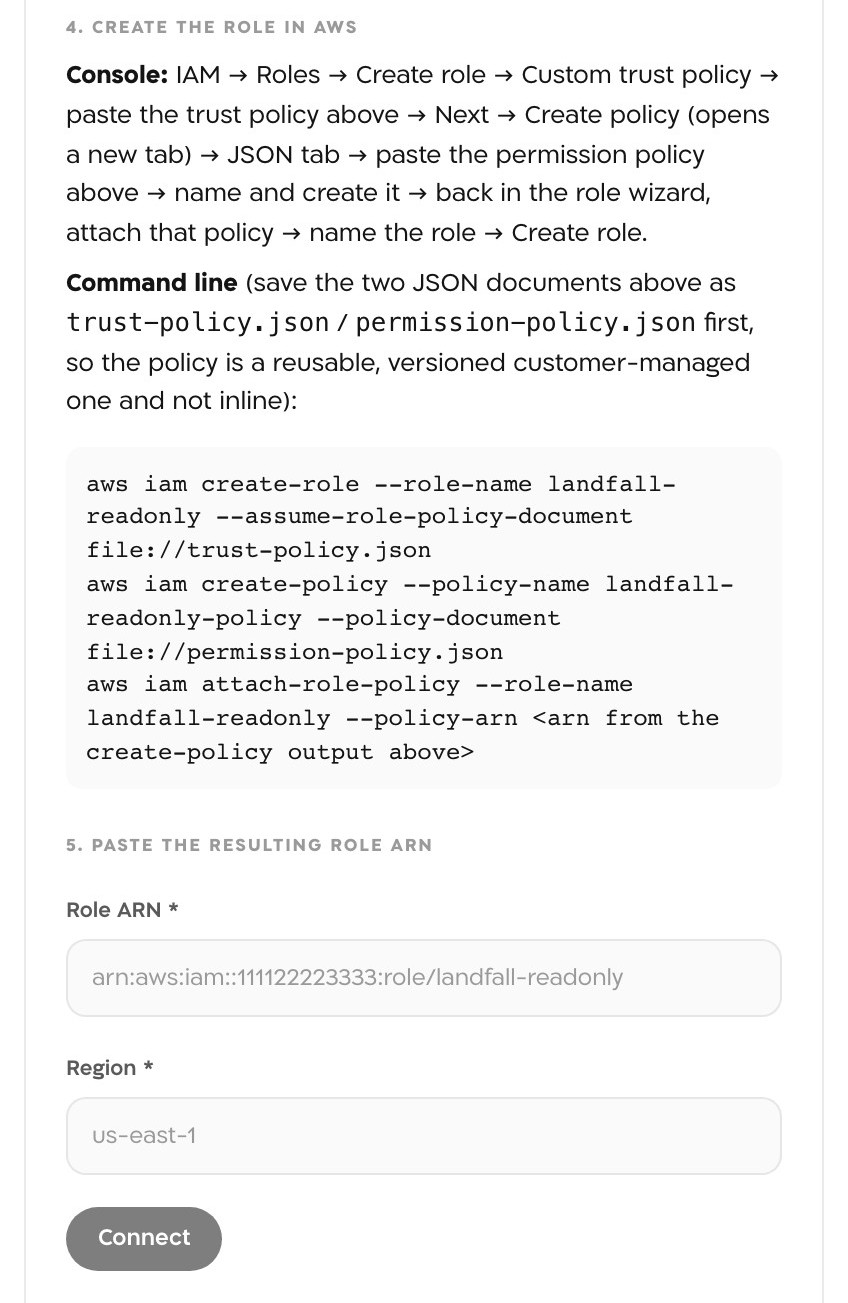
Creating the role in AWS, then pasting its ARN and choosing Connect. Connect
Landfall assumes the role with the external id, then makes the same single GetCallerIdentity call every AWS connection goes through. This happens before anything is saved. A role it cannot assume is refused with AWS's own message, and nothing is stored. On success AWS (CloudWatch) reads Configured under Context sources, and the panel switches to the connection's status view, which shows the role ARN, the region and a Resource access section.
Test resource access
In that view, Test resource access checks whether CloudWatch metrics reads and CloudWatch logs reads actually succeed against your role's real policy, and reports each one as reachable or blocked. Use it to catch a too-narrow policy during setup rather than mid-incident. It runs only when you click it and does not change the connection's status.
4. Optional: Let Beacon read GuardDuty, Security Hub and WAF
The same connection also reads three AWS security services, with no second connection. A wizard role does not include their read actions. Add this statement to the Statement list of landfall-readonly-policy (IAM → Policies → landfall-readonly-policy → Edit → JSON) and save it:
{
  "Sid": "LandfallSecuritySignals",
  "Effect": "Allow",
  "Action": [
    "guardduty:ListDetectors",
    "guardduty:ListFindings",
    "guardduty:GetFindings",
    "securityhub:GetFindings",
    "wafv2:ListWebACLs",
    "wafv2:GetSampledRequests"
  ],
  "Resource": "*"
}
A role from landfall connect aws uses ReadOnlyAccess and already reads all three. Either way it is the same single connection.
GuardDuty detectors, Security Hub findings and regional WAF Web ACLs belong to the connection's region (the one exception is WAFv2 CloudFront-scope Web ACLs, which are global and served from us-east-1 whatever your connection's region). An empty result can mean 'nothing to find', 'the service is not enabled' or 'wrong region for this account's resources', the same ambiguity CloudWatch has.
Other ways to connect
From the terminal: landfall connect aws
The landfall CLI runs the whole flow with your own AWS CLI and credentials:
brew tap landfalls-ai/landfall && brew install landfall
landfall login
landfall connect aws
It fetches Landfall's principal, generates an external id, and deploys a pinned CloudFormation template as the stack landfall-onboarding, which creates the role landfall-readonly with the AWS-managed ReadOnlyAccess policy. It checks the template's checksum before running anything. It then registers the connection and runs a health check, which prints the account it reached: Connected ✓ Authenticated to AWS account 123456789012 in us-east-1 via arn:aws:iam::123456789012:role/landfall-readonly. Landfall never sees an AWS credential on this path.
With --terraform the CLI prints the pinned module snippet instead of running anything, then asks for the role ARN it outputs. --region picks the region.
Access keys instead of a role
Where role assumption isn't possible, choose Static access keys in the same panel. Set Authentication to keys, fill Region, Access key id and Secret access key for a read-only IAM user, and leave Role ARN and External id empty. Test connection shows Authenticated to AWS account <id> in <region>, and Save integration runs the same check before saving. Landfall stores the secret in its secret manager, never in its database. A long-lived key is still a long-lived key, so prefer the role.
Several AWS accounts
Each account is its own named connection. Once you have more than one, every read names the connection it uses, and Landfall never guesses between them.
- One connection per account. Run landfall connect aws with credentials for each account. Each run adds a connection named aws-<account id>, or the name you pass with --name.
- A management account reaching member accounts. Run landfall connect aws --management --member <accountId> in the management account, repeating --member for each member. The CLI then prints the commands to run in each member account: a role with the same name (landfall-readonly unless you pass --member-role-name) that trusts the management role. Each member becomes its own queryable target under the one connection, up to 24. Members are always declared; Landfall never enumerates your AWS organization.
What it looks like
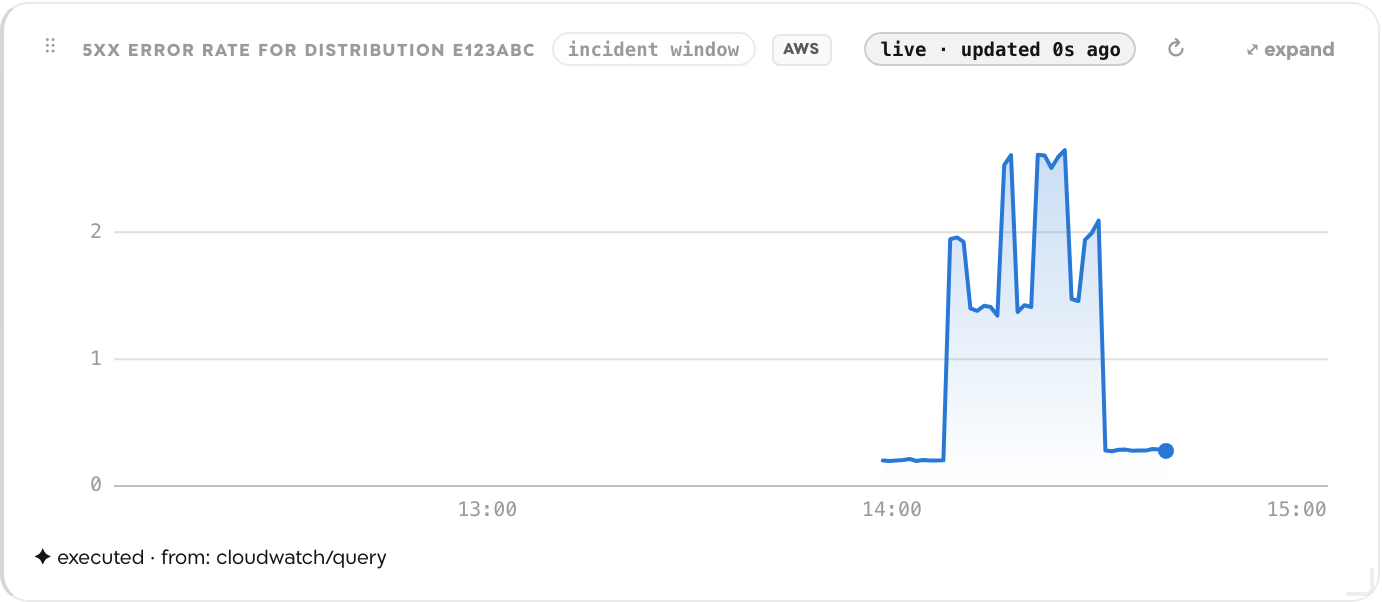
What Beacon can read
| Operation | What comes back |
|---|---|
| cloudwatch/listMetrics | The metrics that exist: namespace, name and dimensions |
| cloudwatch/getMetricStatistics | One metric's statistic series over a window |
| cloudwatch/getMetricData | One or more metric queries or expressions over a window |
| cloudwatch/describeLogGroups | The log groups that exist |
| cloudwatch/describeLogStreams | The streams in one log group |
| cloudwatch/filterLogEvents | Log events from one group in a window, with an optional filter pattern |
| cloudwatch/listEcsClusters, listEcsServices | ECS clusters and the services running in each (Architecture map add-on) |
| cloudwatch/listLoadBalancers, listTargetGroups, describeTargetHealth | Load balancers, their target groups and target health (Architecture map add-on) |
| cloudwatch/describeServices | ECS service task counts and deployments (Optional capabilities add-on) |
| cloudwatch/lookupEvents | CloudTrail management events in a window (Optional capabilities add-on) |
| guardduty/listDetectors, listFindings, getFindings | The region's detector, then finding ids, then full findings |
| securityhub/getFindings | ASFF findings, optionally filtered and sorted |
| wafv2/listWebAcls | Web ACLs in the REGIONAL or CLOUDFRONT scope |
| wafv2/getSampledRequests | Sampled requests for one Web ACL rule, from the last 3 hours only |
Each read returns AWS's own response, from the account the read names. These operations reach Beacon and every agent that joins the room through get_signal_catalog and query_signals. See Integrations architecture.
Opening incidents from AWS
A CloudWatch alarm can open a war room through SNS and a forwarding Lambda; see CloudWatch alerts. GuardDuty, Security Hub and WAF findings cannot open a room yet.
Troubleshooting
- Landfall shows AWS's own message and saves nothing. Check that the role's trust policy is the one the wizard showed, with the same external id.
- This draft was regenerated since you loaded this page means another tab, or Start over, made a new external id. Choose Reload, then update the role's trust policy if it holds the old one.
- A role created a moment ago may still be propagating in IAM. Wait a minute and try again.
- IAM role setup unavailable means this Landfall deployment has no AWS identity of its own to assume your role with. Use static access keys instead.
- The verification call proves authentication, not that telemetry exists. Check that the region on the connection matches where your CloudWatch data actually lives; metrics and log groups are regional, and a connection pointed at the wrong region reads as empty rather than failing.
- Run Test resource access to see whether the policy blocks metrics or logs.
- GuardDuty, Security Hub and WAF need the statement in step 4 on a wizard role.
Someone uninstalled it on the Integrations page's Marketplace tab. Install it there again.
Reference
| Field | Value |
|---|---|
| Authentication | IAM role (recommended) or Static access keys |
| External id | Generated for each role connection by the wizard or by landfall connect aws; stored as a secret |
| Region | One AWS region per connection, required |
| Role ARN | The role you created, for example arn:aws:iam::123456789012:role/landfall-readonly; required in role mode |
| Read operations | The cloudwatch, guardduty, securityhub and wafv2 operations above |
| Access | Read-only, with no write operation. Wizard role: the six CloudWatch actions plus the add-ons you chose, and the step 4 statement for security reads. CLI role: AWS-managed ReadOnlyAccess |
| Credentials | Role mode: short-lived STS credentials at read time, nothing long-lived stored. Keys mode: the secret is held in Landfall's secret manager, never its database |
| In your CloudTrail | Landfall's reads use the session name landfall-telemetry-read |
| Revoke | Delete the role, or the landfall-onboarding CloudFormation stack the CLI created |
| Trigger endpoint | POST https://api.landfalls.ai/triggers, for CloudWatch alarms (see CloudWatch alerts) |