
Connecting Datadog to Landfall
Connect Datadog so Beacon, the room's AI agent, can query your metrics and logs while it works an incident. A Datadog monitor can also open the incident, and you set that up separately.
- As a source: Beacon reads your Datadog metrics and logs. It takes a Datadog API key, an application key and your Datadog site.
- As a trigger: a monitor opens a Landfall incident through a Datadog webhook. It takes your organization's trigger ingest token. See Opening a war room from a Datadog monitor.
What you'll need
- Your Datadog site. It is fixed when the account is created, and you can see it in Datadog's address bar and under Organization Settings.
- Access in Datadog to create an API key and an application key, ideally under a service account.
- Nothing to open on your network. Landfall calls https://api.<your site> from its own servers.
- An admin of your Landfall organization. The Integrations page is admin-only.
1. Create an API key and an application key in Datadog
Landfall reads Datadog with two keys. The API key identifies your Datadog organization, and the application key authorizes reads. Landfall's connection test uses only the API key, so it passes without the application key, yet every read needs both.
Organization Settings → API Keys
Click New Key and name it, for example landfall. Copy the value now. The list shows only the last four characters afterwards.
Organization Settings → Application Keys
Click New Key here too and copy the value. An application key belongs to the user who creates it and can do only what that user can do. If that account is deactivated, the key stops working and Landfall's reads fail. For a connection that should outlive one person, create the key under a service account (Organization Settings → Service Accounts).
2. Add it to Landfall
Integrations → Context sources → Datadog
In Landfall's left menu, open Integrations. Under Context sources, click the Datadog tile. Paste the API key and the Application key, and pick your Site. Leave API base override blank.
app.landfalls.ai · Integrations · Datadog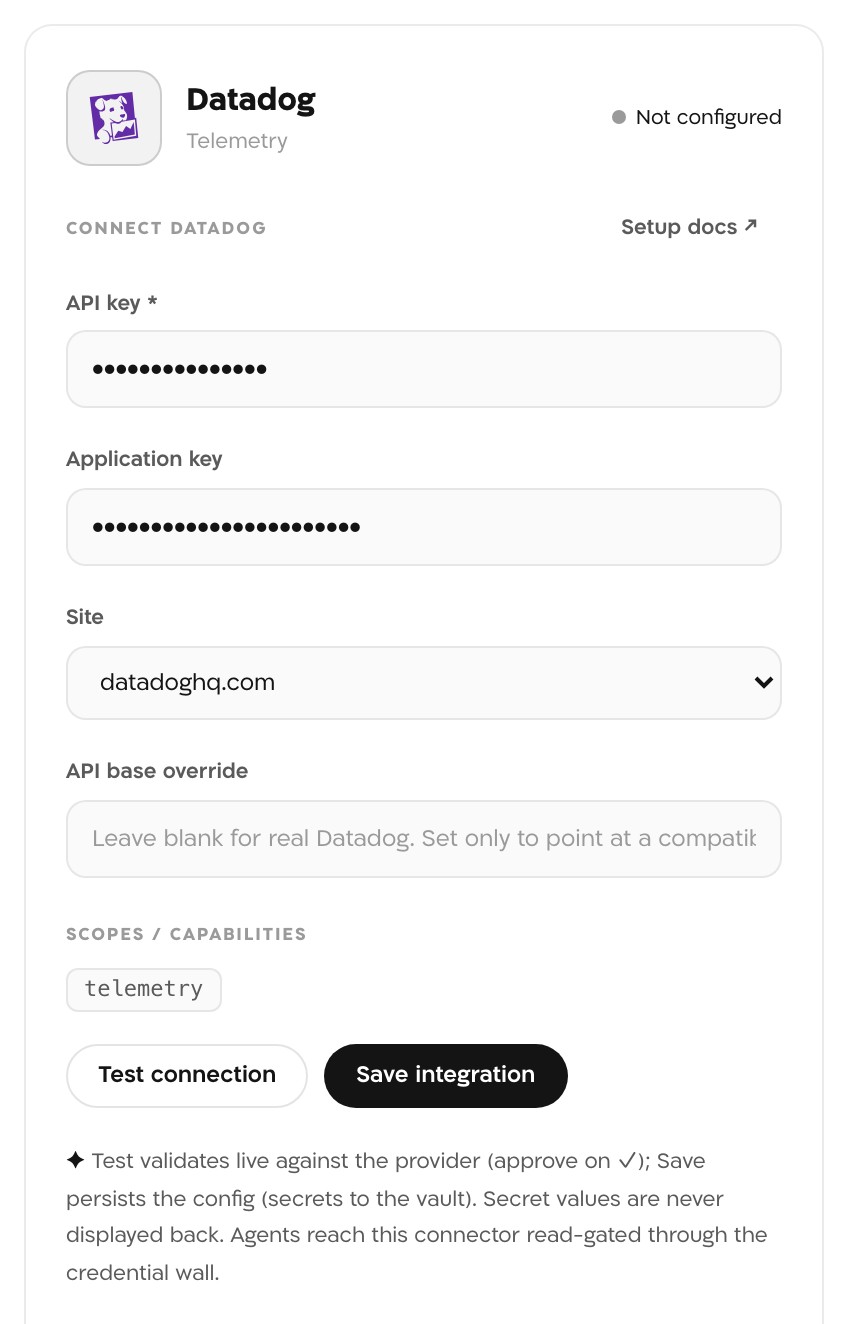
The panel before a test. The keys in this picture are masked, and Landfall never displays a saved secret back. Test connection
Landfall calls Datadog's validate API on your site with the API key. A good key prints Datadog API key valid (datadoghq.com), with your own site in the brackets.
Save integration
Click Save integration. Save runs the same check first and stores nothing if the API key fails it. The panel and the Datadog tile now read Configured.
What it looks like
In the war room, each read Beacon makes shows as a line naming the source and the operation, such as Investigating <resource> via datadog/queryMetrics. A read outside the incident's scope shows as a denied line instead; see Troubleshooting.
What Beacon can read
| Operation | What comes back |
|---|---|
| listMetrics | The metric names active since a given time (one hour ago by default), optionally filtered by host or by a tag such as env:prod. |
| queryMetrics | Timeseries points for a metric query such as avg:aws.cloudfront.5xx_error_rate{*}, between a start and an end time. |
| listLogIndexes | The log indexes that exist in your Datadog organization. |
| listLogs | Log events matching a search query between a start and an end time, up to an optional limit. |
Each comes back as Datadog's own API response, unchanged. The operations reach Beacon and every agent that joins the room through get_signal_catalog and query_signals. See Integrations architecture.
Opening incidents from Datadog
A Datadog webhook can open a Landfall incident when a monitor alerts, and later notifications for the same alert land in that room. It authenticates with your organization's trigger ingest token, a separate credential from these keys, and works with or without the source connection. The steps are on Opening a war room from a Datadog monitor.
Troubleshooting
- Check the site first. A key from a datadoghq.eu account tested against datadoghq.com is rejected, which reads like a bad key. This is the most common cause.
- The test reads only the API key field. Make sure the API key is there, and not in the Application key field.
- Datadog: API key invalid or Datadog validate HTTP <status>: confirm the key was not revoked or rotated since you copied it.
Datadog has two kinds of key and they are not interchangeable. The API key alone passes the connection test, and then every metric and log read fails, so the integration shows Configured while Beacon gets nothing back. Enter both keys again, each in its own field, and save. The panel never shows a saved key, and Save needs the API key every time. If the application key was made by a person whose account was later deactivated, create a new one under a service account.
A denied line names a read outside the incident's scope. That scope is your organization's connected sources, narrowed to the ones the room was scoped to. If the line names datadog, check that this integration is saved and that the room is not scoped to other sources only. An incident a Datadog monitor opened is still investigable once the connection is saved.
Reference
| Field | Value |
|---|---|
| API key | Required. Sent as DD-API-KEY. |
| Application key | Optional to save, needed for every read. Sent as DD-APPLICATION-KEY. |
| Site | datadoghq.com · datadoghq.eu · us3.datadoghq.com · us5.datadoghq.com · ap1.datadoghq.com · ddog-gov.com. Defaults to datadoghq.com. |
| API base override | Leave blank. It exists only to point a test environment at a Datadog-compatible endpoint. |
| Connections | One Datadog connection per organization. |
| Read operations | listMetrics, queryMetrics, listLogIndexes, listLogs |
| Access | Read-only. The test calls GET /api/v1/validate, and reads use Datadog's metrics, log index and log search APIs. Landfall has no code path that writes to, mutes or deletes anything in Datadog. |
| Credential cache | A resolved credential is cached in memory for up to 60 seconds so the secret store is not read on every request. Keys you replace or remove in Landfall stop being used within that minute. |
| Secret storage | Landfall's integration secrets backend (AWS Secrets Manager by default), for your organization only. The panel never displays a saved key back. |
| Revocation | Delete either key in Datadog, and the next read is refused. The panel has no remove button yet. An admin removes the connection with DELETE /o/<your-org>/integrations/datadog/connections/default. |
| Trigger endpoint | POST https://api.landfalls.ai/triggers with your ingest token. See Opening a war room from a Datadog monitor. |