
Connecting Coralogix to Landfall
Connect Coralogix so Beacon, the room's AI agent, can query your logs while it works an incident. A Coralogix alert can also open the incident, and you set that up separately.
- As a source: Beacon reads your Coralogix logs. It takes one Team API key with the Actions and DataQuerying role presets.
- As a trigger: an alert opens a Landfall incident through a Coralogix outbound webhook. It takes your organization's trigger ingest token. See Opening a war room from a Coralogix alert.
What you'll need
- A Coralogix account, and the region domain your team signs in with. The panel offers coralogix.com, eu2.coralogix.com, coralogix.us, cx498.coralogix.com, coralogix.in, coralogixsg.com and ap3.coralogix.com.
- Access to Settings → API Keys in Coralogix, to create a team key.
- Nothing to open on your network. Landfall calls https://api.<your domain> from its own servers.
- An admin of your Landfall organization. The Integrations page is admin-only.
1. Create a Team API key in Coralogix
Landfall only reads from Coralogix. Give it a Team key with two role presets: Actions, which the connection test uses, and DataQuerying, which Beacon's log queries need. A broader admin key is not needed.
Settings → API Keys
Open Settings, then API Keys, and click Add key.
coralogix.com · Settings · API Keys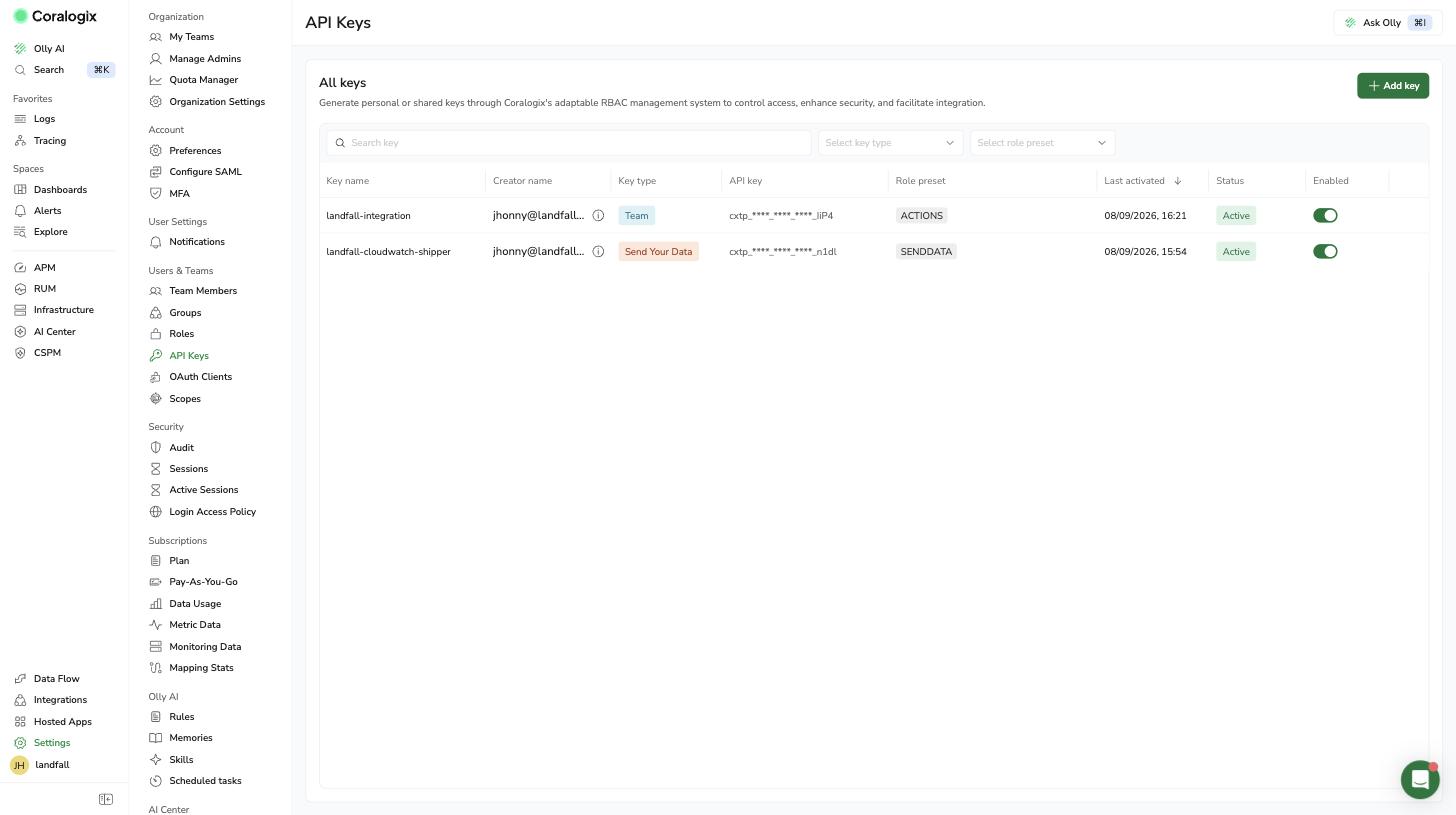
Add key sits at the top right of the keys list. Creator names, key values, one key name and the team name are blurred in this picture. Key type: Team Key · Role Presets: Actions and DataQuerying
Name the key so you will recognize it later, for example landfall-integration. Pick Team Key, then check both Actions and DataQuerying in Role Presets and click Create. Neither preset is enough on its own.
coralogix.com · Settings · API Keys · Create a new team key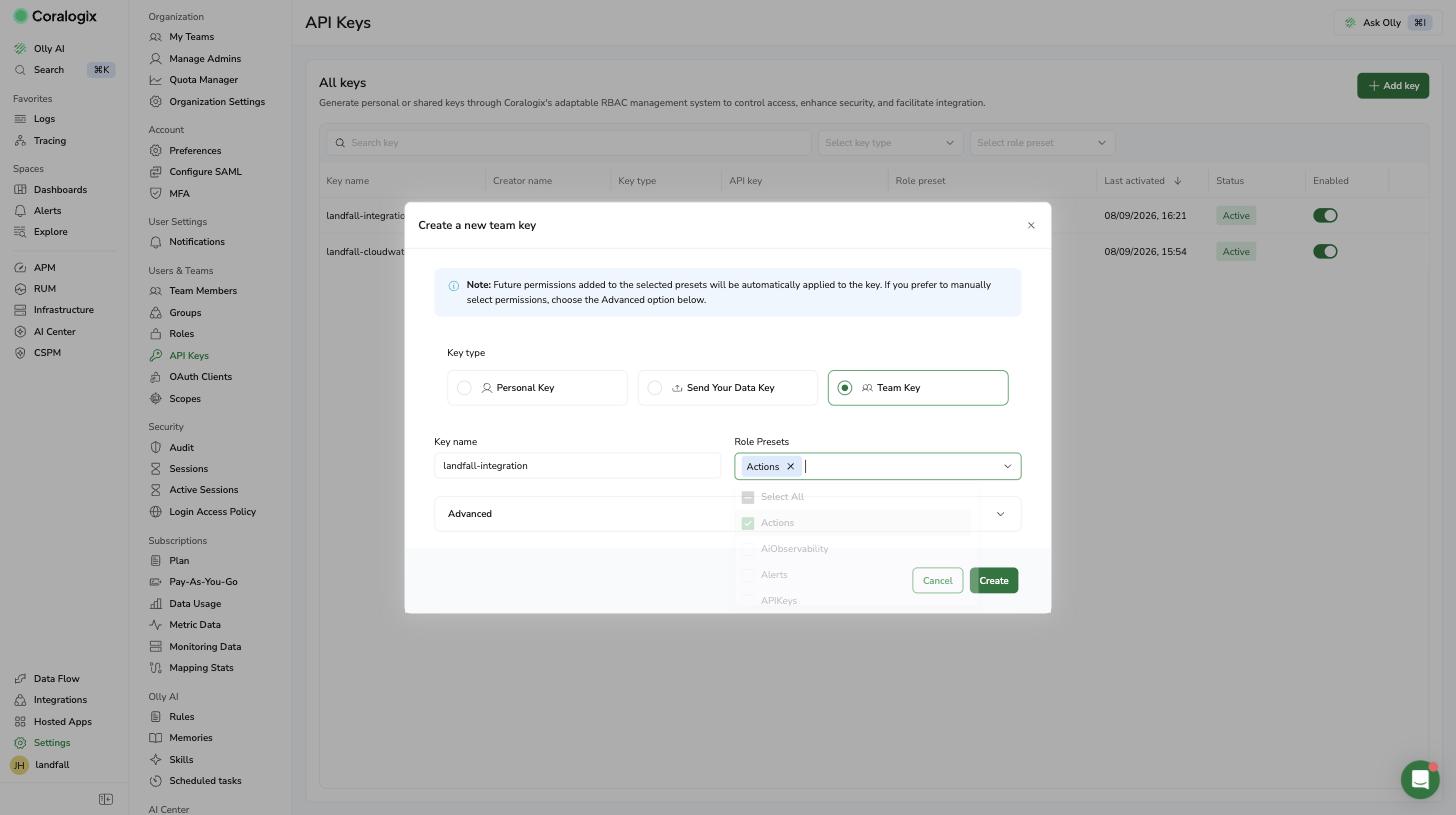
This picture shows only Actions checked. Check DataQuerying in the same list as well before you click Create. Copy the value
Coralogix shows the value once. Copy it now; you paste it into Landfall in the next step.
coralogix.com · Settings · API Keys · Create a new team key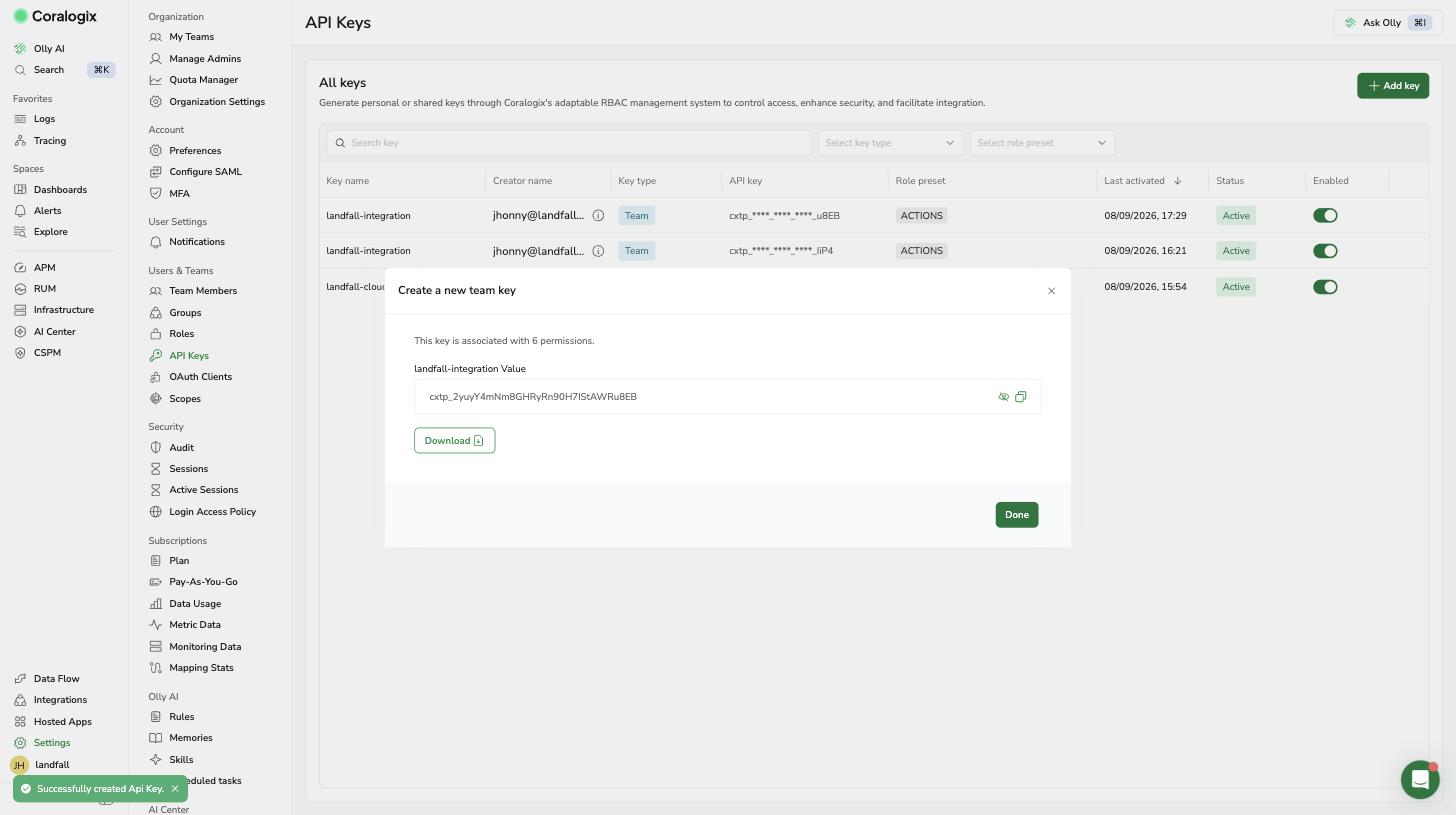
The value field is blurred in this picture, and so are the creator names and key values in the table behind it. Copy your value before you click Done.
2. Add it to Landfall
Integrations → Context sources → Coralogix
In Landfall's left menu, open Integrations. Under Context sources, click the Coralogix tile. Paste the key into API key and pick your Region domain.
app.landfalls.ai · Integrations · Coralogix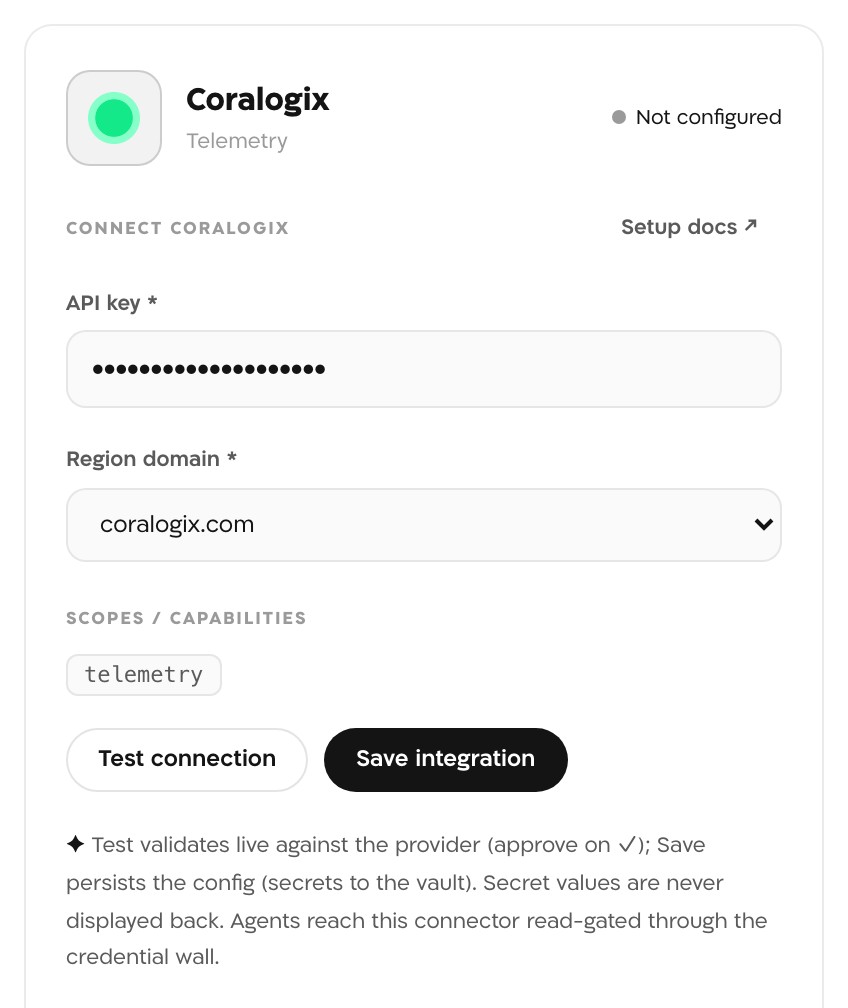
The panel has two fields, API key and Region domain. The key in this picture is masked, and Landfall never displays a saved secret back. Test connection
Landfall calls Coralogix's List Actions API with the key. A good key prints Coralogix API key valid (eu2.coralogix.com), with your own domain in the brackets.
app.landfalls.ai · Integrations · Coralogix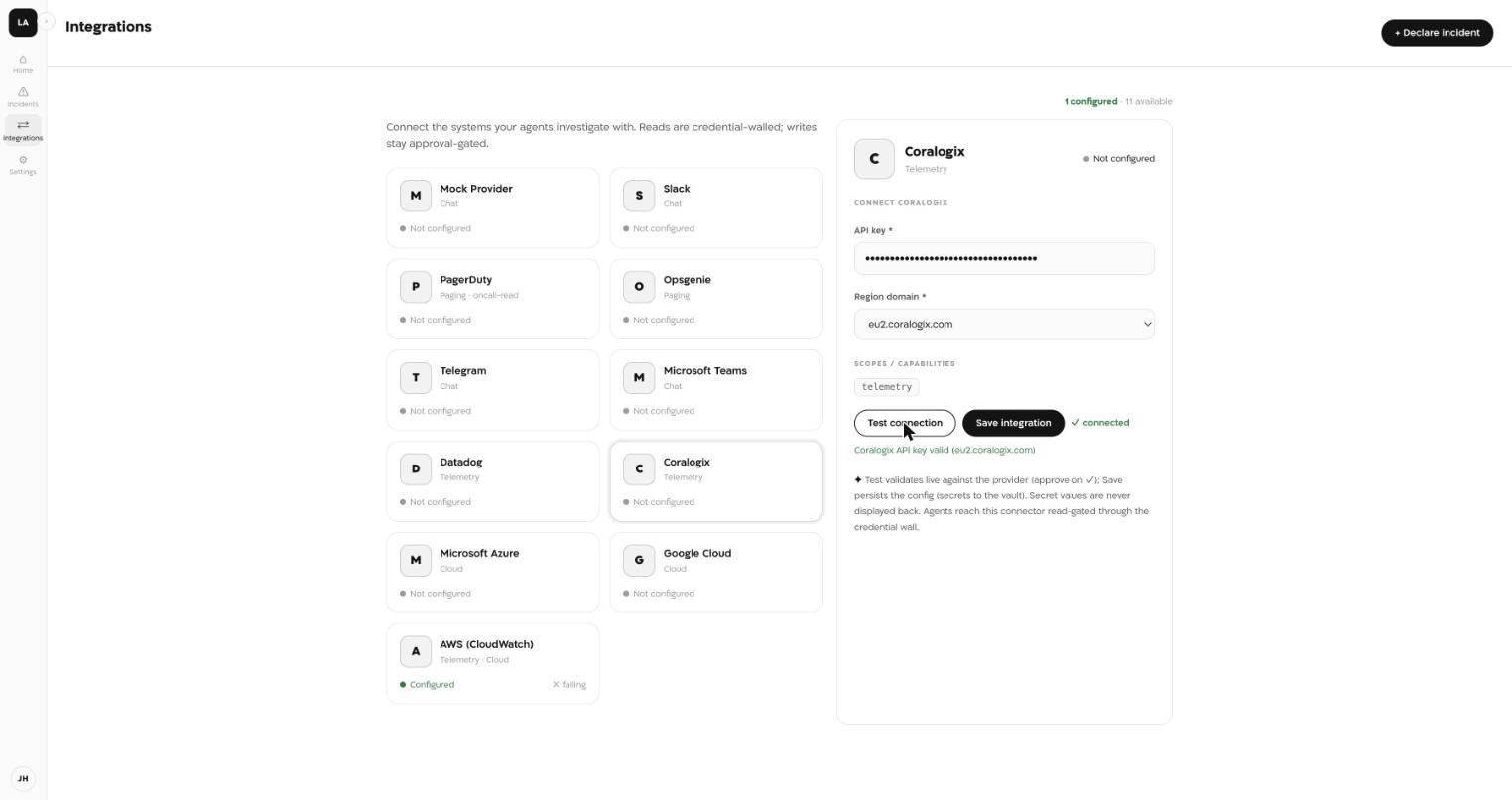
A passing test shows a green connected badge and the result line. The test needs only the Actions preset, so it passes even without DataQuerying. The key is masked, and the organization mark at the top left is blurred. Save integration
Click Save integration. Save runs the same check first and stores nothing if the key fails it. The panel and the Coralogix tile now read Configured.
app.landfalls.ai · Integrations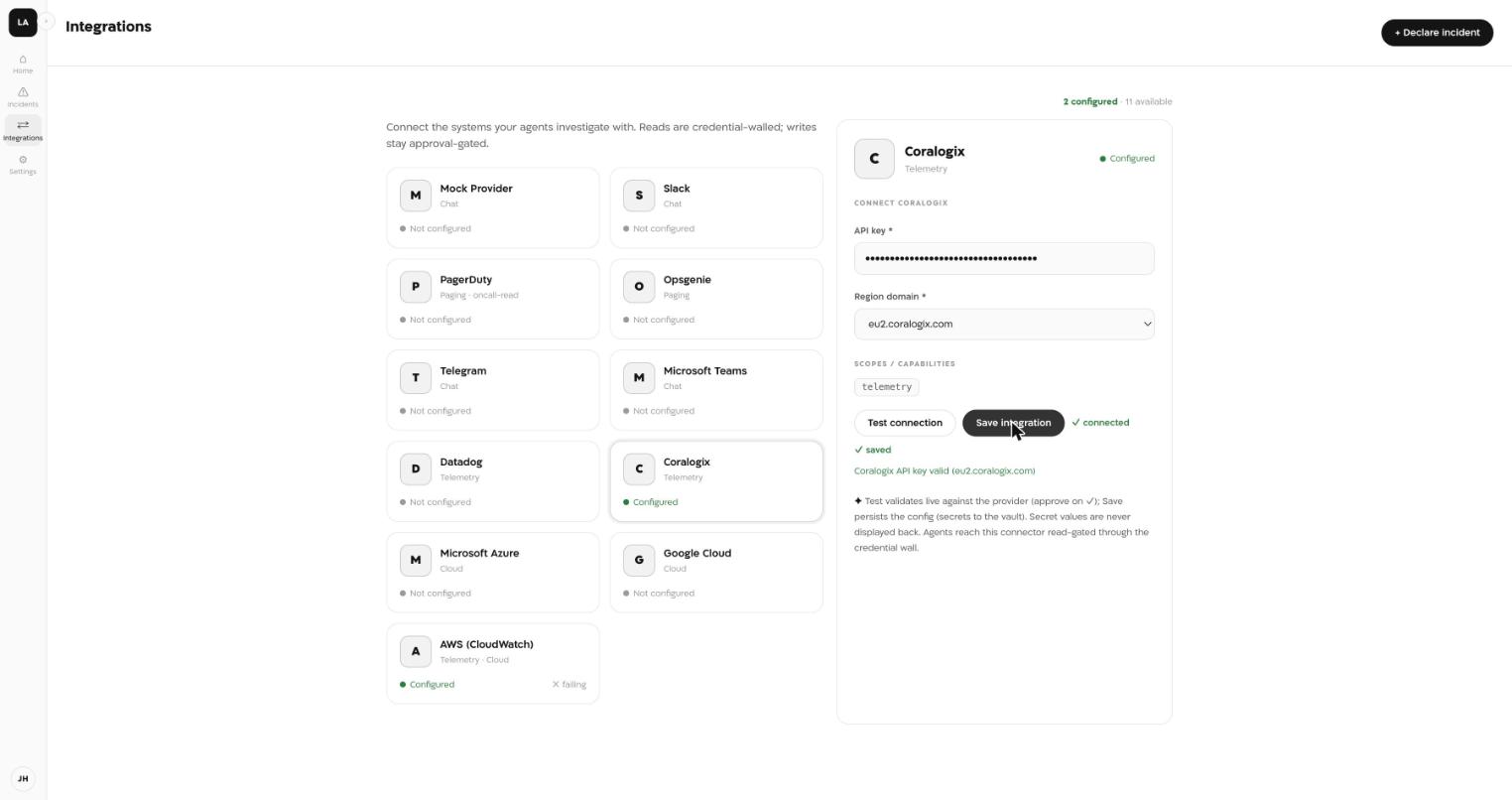
After saving, the Coralogix tile in the grid reads Configured. The organization mark at the top left is blurred.
What it looks like
In the war room, each read Beacon makes shows as a line naming the source and the operation, such as Investigating <resource> via coralogix/query. A read outside the incident's scope shows as a denied line instead; see Troubleshooting.
What Beacon can read
| Operation | What comes back |
|---|---|
| discover | Recent log activity grouped by application and subsystem, with a count for each, over the last 60 minutes unless asked for another window. Landfall writes this DataPrime query itself. |
| query | The result of a DataPrime or Lucene query, over a start and end time (the last 60 minutes by default), optionally from the archive or frequent-search tier. |
Both run against Coralogix's DataPrime query API and come back as Coralogix's own JSON. They need the DataQuerying preset on the key. The operations reach Beacon and every agent that joins the room through get_signal_catalog and query_signals. See Integrations architecture.
Opening incidents from Coralogix
A Coralogix outbound webhook can open a Landfall incident when an alert fires. It authenticates with your organization's trigger ingest token, a separate credential from this API key, and works with or without the source connection. The steps are on Opening a war room from a Coralogix alert.
Troubleshooting
- Coralogix: API key rejected (401/403): check the region domain first. It must match the domain you sign in to Coralogix with, and a mismatch is the most common cause. Then check that the key is still enabled and was not deleted or replaced.
- The test calls the Actions API, so the key needs the Actions preset. A Send Your Data key is rejected.
- Coralogix HTTP <status>: Coralogix answered with an error other than 401 or 403, and the status code says which.
- The key is probably missing DataQuerying. The connection test does not run a log query, so the integration still reads Configured. In a live test, Coralogix answered an Actions-only key's query with 404 (no matching datasets), and Beacon's read failed with Coralogix HTTP 404.
- Edit the key in Coralogix (Settings → API Keys) and add the DataQuerying preset. The key value stays the same, so nothing changes in Landfall.
A denied line names a read outside the incident's scope. That scope is your organization's connected sources, narrowed to the ones the room was scoped to. If the line names coralogix, check that this integration is saved and that the room is not scoped to other sources only. An incident a Coralogix alert opened is still investigable once the connection is saved.
Reference
| Field | Value |
|---|---|
| API key | Required. A Coralogix Team API key, sent as Authorization: Bearer. |
| Region domain | coralogix.com · eu2.coralogix.com · coralogix.us · cx498.coralogix.com · coralogix.in · coralogixsg.com · ap3.coralogix.com |
| Role presets | Actions (connection test) and DataQuerying (log queries) |
| Read operations | discover, query |
| Access | Read-only. The test calls GET /mgmt/openapi/latest/v2/actions and reads call POST /api/v1/dataprime/query, both on https://api.<your domain>. Nothing else. |
| Credential cache | Up to 60 seconds in memory, so the secret store is not read on every request. A key you replace or remove in Landfall stops being used within that minute. |
| Secret storage | Landfall's integration secrets backend (AWS Secrets Manager by default), for your organization only. The panel never displays a saved key back. |
| Revocation | Delete or disable the key in Coralogix (Settings → API Keys), and the next read fails. The panel has no remove button yet. An admin removes the connection with DELETE /o/<your-org>/integrations/coralogix/connections/default. |
| Trigger endpoint | POST https://api.landfalls.ai/triggers with your ingest token. See Opening a war room from a Coralogix alert. |