
Connecting Google Cloud to Landfall
Beacon, the room's AI agent, reads Cloud Monitoring metrics and Cloud Logging entries for one Google Cloud project, through a service account key you create and scope yourself.
- As a source: one service account JSON key. Beacon reads the project the key belongs to.
- As a trigger: not yet. See Opening incidents from Google Cloud.
What you'll need
- A Google Cloud project, and permission to create a service account, grant it roles and create a key for it.
- An admin seat on your Landfall organization. The Integrations page is admin-only.
1. Create a service account and key
Give the service account read-only roles scoped to what an investigation needs, not Editor or Owner. Create it in the project whose telemetry Beacon should read.
IAM & Admin → Service Accounts → Create service account
Name it something recognizable, such as landfall-integration, and continue.
Grant this service account access to project: Viewer, Monitoring Viewer, Logs Viewer
- roles/viewer (Viewer): sees the project and its resources.
- roles/monitoring.viewer (Monitoring Viewer): reads Cloud Monitoring time series and metric descriptors.
- roles/logging.viewer (Logs Viewer): reads Cloud Logging entries and log names.
Then finish creating the service account.
Keys → Add key → Create new key → JSON
Google Cloud downloads the key file once. You paste its full contents into Landfall next. The key's project_id is the project Beacon reads.
2. Add it to Landfall
Integrations → Context sources → Google Cloud
Open Integrations in the left menu, pick Google Cloud under Context sources, and paste the whole JSON key into Service account key (JSON).
app.landfalls.ai · Integrations · Google Cloud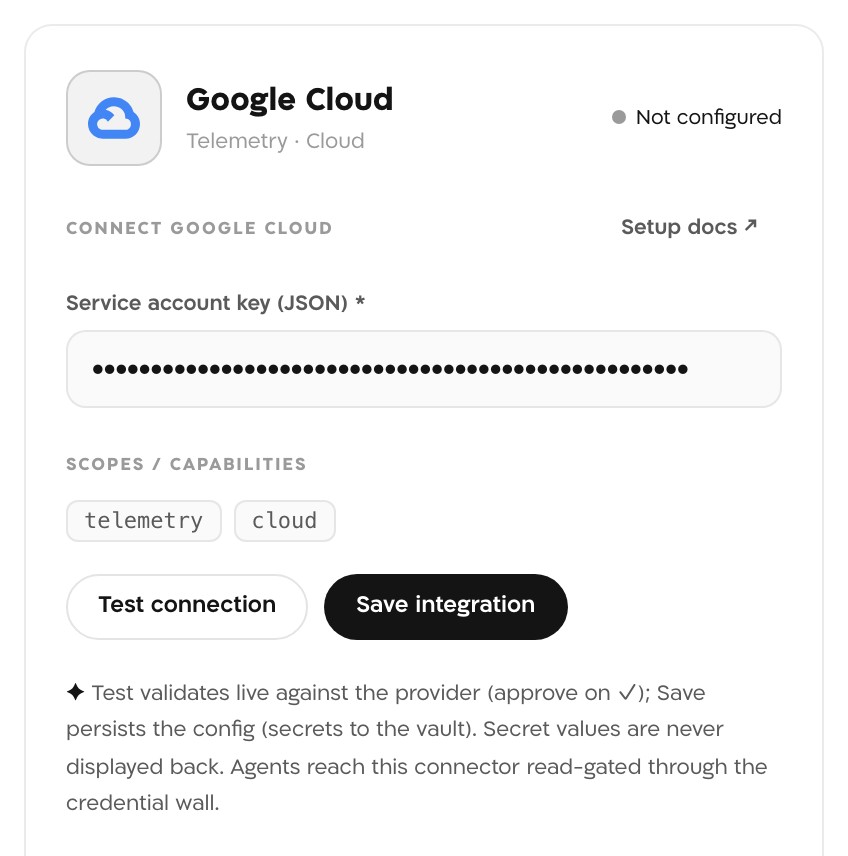
The panel before saving, with a pasted key. The key is masked, and Landfall never displays it back. Test connection
Landfall signs a token request with the key and lists one project through Resource Manager. On success the panel shows ✓ connected and the line Google Cloud service account authenticated (<client_email>), naming the service account.
Save integration
Saving runs the same check again and refuses a key that fails it. The key goes to Landfall's secret manager. Google Cloud then reads Configured under Context sources.
What it looks like
In a war room, a chart Beacon builds from Google Cloud names its source in the widget's Info panel. Source reads Google Cloud Monitoring, and the query names gcp-monitoring and the operation, such as queryMetrics.
What Beacon can read
| Operation | What comes back |
|---|---|
| gcp-monitoring/discover | The metric types available in the project, optionally filtered |
| gcp-monitoring/queryMetrics | Time series matching a Monitoring filter over a window |
| gcp-monitoring/discoverLogs | The log names with entries in the project |
| gcp-monitoring/queryLogs | Log entries matching an optional Logging filter over a window |
These operations reach Beacon and every agent that joins the room through get_signal_catalog and query_signals. See Integrations architecture.
Opening incidents from Google Cloud
Not yet. Google Cloud is a telemetry source today: Beacon reads Cloud Monitoring metrics and Cloud Logging entries. Opening incidents from Google Cloud alerts is not built yet. If those alerts already page you through PagerDuty or Opsgenie, connect that tool's trigger and the page opens the room.
Troubleshooting
- serviceAccountJson is not valid JSON or service account key missing client_email or private_key means part of the file was pasted. Paste the whole file again.
- A line starting GCP token exchange HTTP carries Google's own reason, for example a key that was deleted or disabled.
- A 401 or 403 from the Resource Manager check means the key works but has no Resource Manager access. Grant the service account the Viewer role.
- A service account that passes Test connection does not necessarily have Monitoring Viewer and Logs Viewer. Without them, Beacon's reads fail with a 403.
- Beacon reads only the project named in the key's project_id. Telemetry in another project needs a service account and key created in that project.
Reference
| Field | Value |
|---|---|
| Service account key (JSON) | The full service account JSON key, with client_email, private_key and project_id; required |
| Project | The key's project_id |
| Roles | roles/viewer, roles/monitoring.viewer, roles/logging.viewer |
| Read operations | gcp-monitoring: discover, queryMetrics, discoverLogs, queryLogs |
| Access | Read-only. Reads request only the monitoring.read and logging.read scopes, and there is no write operation |
| Secret storage | Landfall's secret manager, never its database |
| Revoke | Delete the key on the service account's Keys tab, or delete the service account |
| Trigger endpoint | None yet |