
Connecting Slack to Landfall
Slack is a channel Landfall posts incident updates to, and optionally a place to vote on an open decision. Landfall never reads your workspace's message history.
- As a channel: an update a person approves in Landfall posts into a Slack channel. Takes a Slack app's Bot User OAuth token.
- As a decision channel (optional): people in a bridged channel vote on an open decision from Slack. Takes the same app's Signing secret as well.
What you'll need
- Permission to create a Slack app in your workspace, or an existing app you can change.
- An admin on your Landfall organization, to save the connection under Integrations.
- A personal Landfall API key for the admin, to turn on real egress (it has no screen yet).
- Only for the decision bridge: your Slack workspace ID, and the right to set an Interactivity Request URL on the app.
1. Create a Slack app in Slack
api.slack.com/apps → Create New App
Create the app in the workspace that should receive incident updates.
OAuth & Permissions → Bot Token Scopes
Add chat:write, users:read, users:read.email and channels:manage. Landfall uses them to post and update messages, to create a channel for one incident, to match a responder by email, and, for the decision bridge, to resolve the person who clicked a vote button.
OAuth & Permissions → install the app to your workspace
Approve the install, then copy the Bot User OAuth token. It starts with xoxb-. Invite the app to each channel it should post in, for example #incidents.
2. Add it to Landfall
Integrations → Chat → Slack
Open Integrations in the left menu and select the Slack tile under Chat. Paste the token into Bot User OAuth token (xoxb-…). Default channel is optional and is saved with the connection; the incident's Comms tab posts to #incidents today, whatever this field says. Leave Signing secret empty unless you set up voting in step 3.
app.landfalls.ai · Integrations · Slack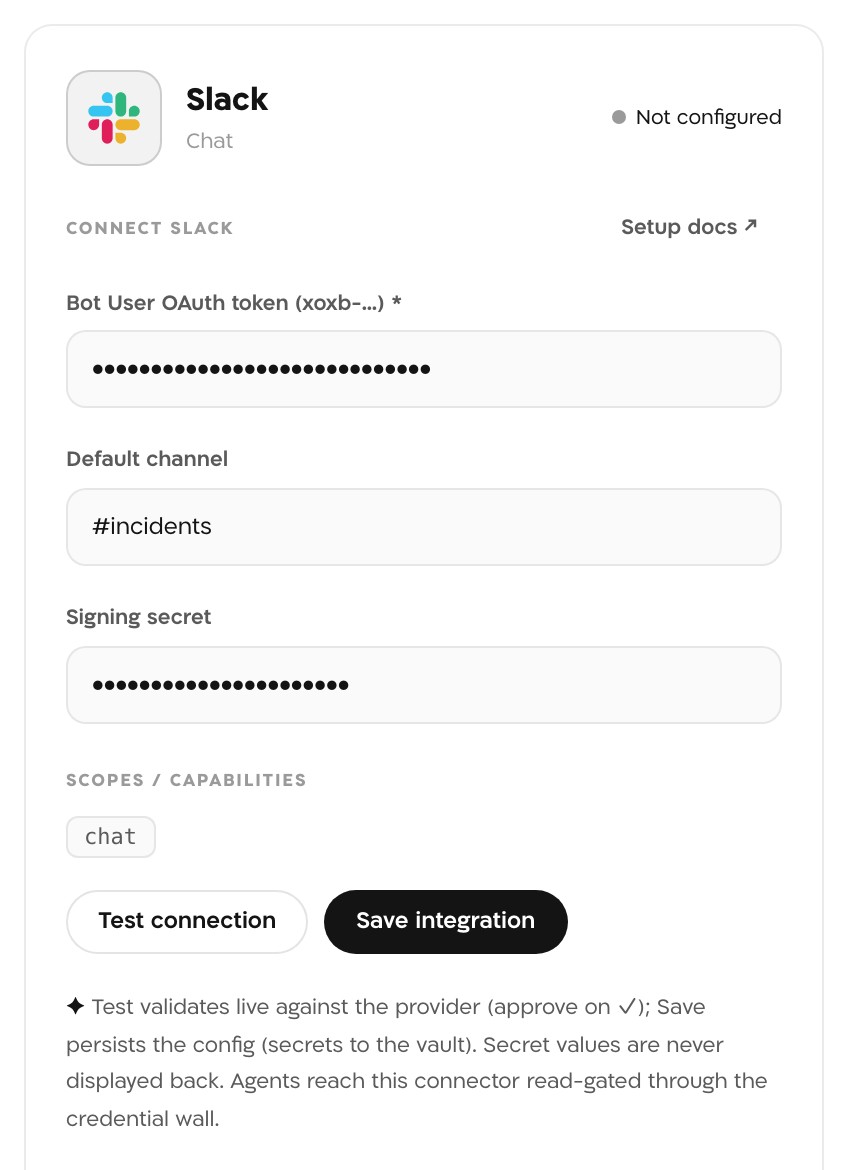
The Slack panel before saving, with #incidents as the default channel. The Signing secret is filled in here too; you need it only for votes from Slack. The token and the secret in this picture are masked. Test connection
Landfall calls Slack's auth.test with the token. Nothing is posted. A working token shows ✓ connected and the line connected to Slack team <your team>.
Save integration
The token and the signing secret go to Landfall's secrets backend and are never shown again. The panel and the Slack tile read Configured.
Turn on real egress (API only)
Real egress is off for every organization by default. Until it is on, an approved update is recorded in the room and not delivered, and the Comms tab says so. The switch has no screen yet. An admin turns it on with a personal API key from Your settings → API keys:
Terminalcurl -X PUT https://api.landfalls.ai/o/<your-org>/oncall/egress \ -H "Authorization: Bearer lf_key_…" \ -H "Content-Type: application/json" \ -d '{"enabled": true}'The switch covers every chat connection in the organization: Slack, Microsoft Teams, Telegram and Buzz. The change is audited.
3. Optional: let people vote from Slack
Existing connections keep working, unchanged. The decision bridge is off until you complete this section. Until then Landfall refuses every inbound delivery from Slack: no signing secret is stored, and a connection without one cannot accept a click.
Basic Information → App Credentials → Signing Secret
Copy the app's Signing Secret. It proves an inbound click came from your workspace. Landfall checks it on every delivery and refuses anything that does not match, including a replay of a real click more than five minutes old.
Interactivity & Shortcuts → Interactivity → Request URL
Turn Interactivity on and set the Request URL to https://api.landfalls.ai/triggers/slack/<your-org-slug>. The org slug is the slug= value in your Landfall address bar. Slack posts to this URL each time someone clicks a Landfall button.
Integrations → Chat → Slack → Signing secret
Paste the secret into Signing secret and click Save integration. Like the token, it is stored in the secrets backend and no API returns it.
Bridge one incident's channel, and approve it (API only)
The bridge is set per incident, by an admin, through the API. Bind it with your Slack workspace ID (a T… value) and choose whether votes may be cast from the channel. With the channel open in Slack in a browser, the address reads app.slack.com/client/<workspace ID>/<channel ID>. channelRef is optional when the incident already has a channel; it defaults to that one. Then grant the bridge's standing approval:
Terminalcurl -X POST https://api.landfalls.ai/o/<your-org>/incidents/<incident-id>/oncall/chat-bridge \ -H "Authorization: Bearer lf_key_…" \ -H "Content-Type: application/json" \ -d '{"workspaceRef": "T0123456789", "channelRef": "C0123456789", "inboundVotesEnabled": true}' curl -X POST https://api.landfalls.ai/o/<your-org>/incidents/<incident-id>/oncall/chat-bridge/approval \ -H "Authorization: Bearer lf_key_…"The approval lets an entry post without someone approving each message. It is bound to the exact configuration you approved: change the channel, or turn voting on or off, and it stops applying at once and entries go back to waiting for a person. DELETE on the same /approval path revokes it.
What it looks like
An update a person approves on an incident's Comms tab posts in #incidents, and the tab confirms it with Approved and sent to #incidents for <room>. Through the API, Landfall can also create a channel for one incident, named inc-<incident id> (POST /o/<org>/incidents/<incident-id>/oncall/channel/ensure), and draft a page to a PagerDuty responder whose email matches a Slack account (POST /o/<org>/incidents/<incident-id>/oncall/page). A page waits for a person's approval like any other update.
A bridged channel gets one post per significant entry, each naming who or what produced it: a new finding, a new hypothesis, a decision opened or reached, a line of investigation ruled out, and the incident resolved or closed. The room's conversation and anyone's local investigation capture are never relayed. Each vote clicked in Slack, accepted or refused, is recorded on the incident's timeline.
If Slack is unavailable, the incident is unaffected; nothing in Landfall waits on the bridge in either direction. A vote clicked in Slack during a Slack outage is never delivered, and Landfall cannot learn it happened. The war room stays the authoritative place to vote, and an open decision stays open until it is decided there.
What Beacon can read
Not applicable. Slack is not in the signal catalog, so Beacon and joined agents cannot query it. Landfall reads no message history; the only reads are auth.test, an email lookup for an on-call responder, and, with the decision bridge on, one profile lookup for the person who clicked. See Integrations architecture for the sources that are in the catalog.
Opening incidents from Slack
Not applicable. The /triggers/slack/<org-slug> route takes vote clicks from the decision bridge and never opens an incident. A chat message can open a room from Buzz instead, and alerts open rooms through the Triggering integrations pages, such as Alertmanager.
Troubleshooting
- Slack: invalid_auth or Slack: not_authed: the token is wrong or was revoked. Copy the Bot User OAuth token again from OAuth & Permissions.
- botToken required: the token field is empty.
- The Comms tab says No channel connected, so this is recorded in the room and not delivered. Real egress is off; turn it on (step 2).
- The tab says Not delivered: Slack chat.postMessage: not_in_channel. Invite the app to the channel in Slack, then send again.
- Two Slack connections in one organization: Landfall will not guess between them and sends through neither. Keep one.
- No signing secret is saved, so every click is refused. Finish step 3.
- The person's Slack profile has no email Landfall knows. The vote is refused and recorded on the timeline; Slack shows them nothing.
Reference
| Field | Value |
|---|---|
| Bot User OAuth token (xoxb-…) | Required. The app's bot token. |
| Default channel | Optional, for example #incidents. Saved with the connection; the Comms tab posts to #incidents today. |
| Signing secret | Optional. Needed only to accept votes cast from Slack; from Basic Information → App Credentials. |
| Bot token scopes | chat:write, users:read, users:read.email, channels:manage |
| Read operations | auth.test, users.lookupByEmail, users.info. No message history. |
| Access | Writes chat.postMessage and chat.update, each only after a person's approval or a standing approval, and conversations.create when someone creates a channel for an incident. |
| Real egress | Off by default. PUT /o/<org>/oncall/egress with {"enabled": true}; admin only, audited. |
| Interactivity Request URL | https://api.landfalls.ai/triggers/slack/<org-slug> |
| Where the secrets are stored | Landfall's secrets backend. Never shown again and never returned by an API. |
| Revoke | Uninstall the app from your workspace in Slack. To remove the connection from Landfall, an admin calls DELETE /o/<org>/integrations/slack/connections/default; its secrets go with it. |
| Trigger endpoint | None. Slack cannot open an incident. |
See Integrations architecture for how every Landfall integration shares this connector shape, and how the inbound decision path is verified.