
Connecting Microsoft Teams to Landfall
Microsoft Teams is a channel Landfall posts incident updates to, through a webhook a Teams workflow gives you. Landfall never reads your Teams messages.
- As a channel: an update a person approves in Landfall posts into one Teams channel. Takes the workflow's webhook URL, which is itself the credential.
What you'll need
- Permission to add a workflow to the Teams channel that should receive updates.
- An admin on your Landfall organization, to save the connection under Integrations.
- A personal Landfall API key. Turning on real egress and sending an update to Teams have no screen yet, so both go through the API.
1. Create a webhook workflow in Teams
Channel → More options (...) → Workflows → Send webhook alerts to a channel
Microsoft is retiring the older Incoming Webhook connectors, so use the Workflows app. Pick the template, name the workflow Landfall, choose the team and channel, and save it.
Copy the webhook URL
After the workflow is created, Teams shows its webhook link. Copy it. Anyone holding the URL can post to the channel, so keep it like a password.
2. Add it to Landfall
Integrations → Chat → Microsoft Teams
Open Integrations in the left menu and select the Microsoft Teams tile under Chat. Paste the link into Incoming webhook URL. The field is a secret: Landfall never shows it back.
app.landfalls.ai · Integrations · Microsoft Teams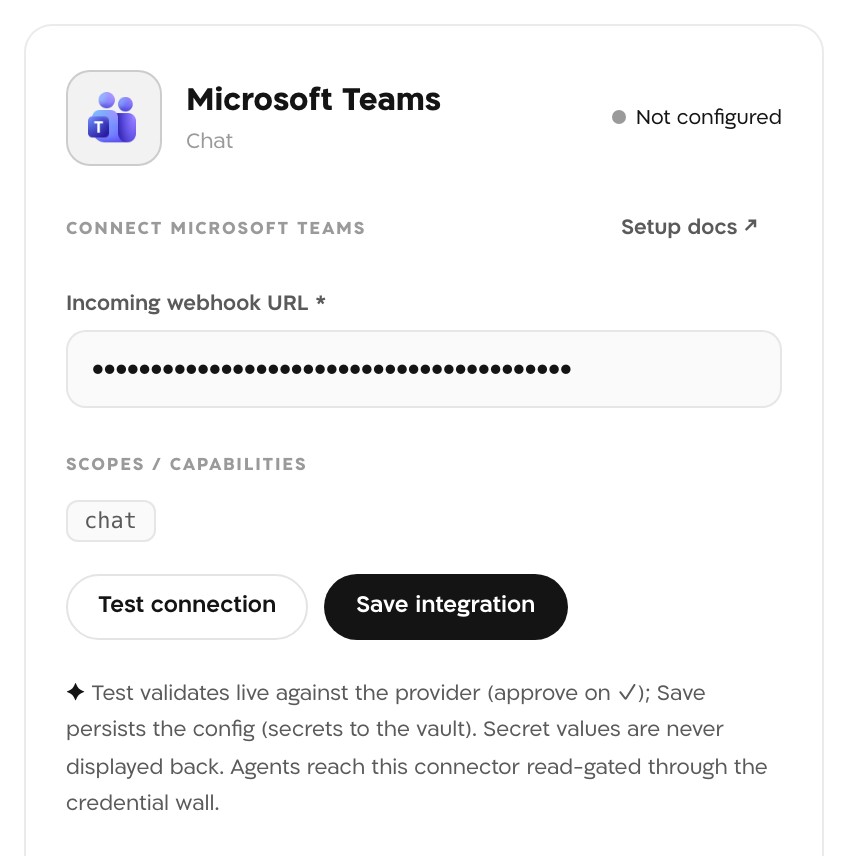
The Microsoft Teams panel before saving. The webhook URL in this picture is masked. Test connection
A Teams webhook has no read or ping call, so the test posts a real message to the channel: Landfall connected ✓ (health check). A working URL shows ✓ connected and the line posted a test message to the Teams webhook.
Save integration
The URL goes to Landfall's secrets backend. The panel and the Microsoft Teams tile read Configured.
Turn on real egress (API only)
Real egress is off for every organization by default, and until it is on an approved update is recorded in the room and not delivered. The test message above is the one exception. An admin turns egress on with a personal API key from Your settings → API keys. The switch covers every chat connection in the organization, and the change is audited.
Terminalcurl -X PUT https://api.landfalls.ai/o/<your-org>/oncall/egress \ -H "Authorization: Bearer lf_key_…" \ -H "Content-Type: application/json" \ -d '{"enabled": true}'Send an update to Teams (API only)
The incident's Comms tab drafts to #incidents, which is a Slack channel. An update for Teams is drafted to the channel teams through the comms API, then approved and sent by a person. The draft call returns the messageId and version the next two calls need.
TerminalBASE=https://api.landfalls.ai/o/<your-org>/incidents/<incident-id>/comms/messages curl -X POST $BASE -H "Authorization: Bearer lf_key_…" \ -H "Content-Type: application/json" \ -d '{"channel": "teams", "body": "Checkout errors are back to normal."}' curl -X POST $BASE/<messageId>/approve -H "Authorization: Bearer lf_key_…" \ -H "Content-Type: application/json" -d '{"version": "<version>"}' curl -X POST $BASE/<messageId>/send -H "Authorization: Bearer lf_key_…"
What it looks like
Each update arrives in the channel as an Adaptive Card holding the update's text. A Teams webhook cannot edit a message it posted, so every update is a new card, and any action in an update is written out as text for the reader to act on in the war room.
What Beacon can read
Not applicable. The connection only sends, so Teams is not in the signal catalog and Beacon and joined agents cannot query it. See Integrations architecture for the sources that are.
Opening incidents from Teams
Not applicable. A Teams webhook has no path back to Landfall, so a Teams message cannot open an incident. A chat message can open a room from Buzz, and alerts open rooms through the Triggering integrations pages, such as Alertmanager.
Troubleshooting
- Teams webhook HTTP <status>: Teams refused the post. The URL is wrong, or the workflow is turned off or deleted. Turn it on in the Workflows app, or create a new workflow and paste its URL.
- webhookUrl required: the field is empty.
- Landfall checks the address before calling it and refuses a private or plain http address. Paste the https link Teams gives you.
- Real egress is off, so the update was recorded as simulated. Turn it on (step 2).
- The update was drafted to #incidents from the Comms tab, which goes to Slack. Draft it to teams instead.
- The message was drafted but not yet approved and sent. Nothing leaves Landfall until a person approves it.
Reference
| Field | Value |
|---|---|
| Incoming webhook URL | Required. The workflow's webhook link; the URL is the credential. |
| Read operations | None. |
| Access | Posts an Adaptive Card to the one channel the workflow names, only after a person approves the update. Test connection posts one test message. |
| Channel name in the comms API | teams, or teams:<label> (the label is for the timeline only; the webhook decides the channel) |
| Real egress | Off by default. PUT /o/<org>/oncall/egress with {"enabled": true}; admin only, audited. |
| Where the secret is stored | Landfall's secrets backend. Never shown again and never returned by an API. |
| Revoke | Delete the workflow in the Teams Workflows app; its URL stops working. To remove the connection from Landfall, an admin calls DELETE /o/<org>/integrations/teams/connections/default. |
| Trigger endpoint | None. Teams cannot open an incident. |
See Integrations architecture for how every Landfall integration shares this connector shape.