
Landfall Edge
Landfall Edge is a small macOS companion app. It keeps whichever coding agent you already use fed with live incident context, and gives you a home base — sign in once, and see every incident and postmortem in your organization without opening a browser.
Rolling it out to a whole team's laptops instead? See Landfall Edge for fleets (MDM).
Install it
- Download Landfall Edge.dmg from edge-dl.landfalls.ai.
- Open it, then drag the Landfall Edge icon onto the Applications alias next to it.
- Launch it from Applications. macOS 13 or later; Landfall Edge v1 is macOS only.
Landfall Edge is a regular app with a Dock icon and a window, and a small background service that keeps following your incidents when the window is closed. On first launch it registers that service to start at login, so it is already running the next time an incident starts. Everything it needs to run is inside the app: no Node, no package manager, nothing to install first.
Sign in to your organization
The first screen has one action. Signing in is optional for joining a single incident: a shared /j/<code> link still works with no account. Signing in opens your organization's pages and keeps you signed in across incidents.
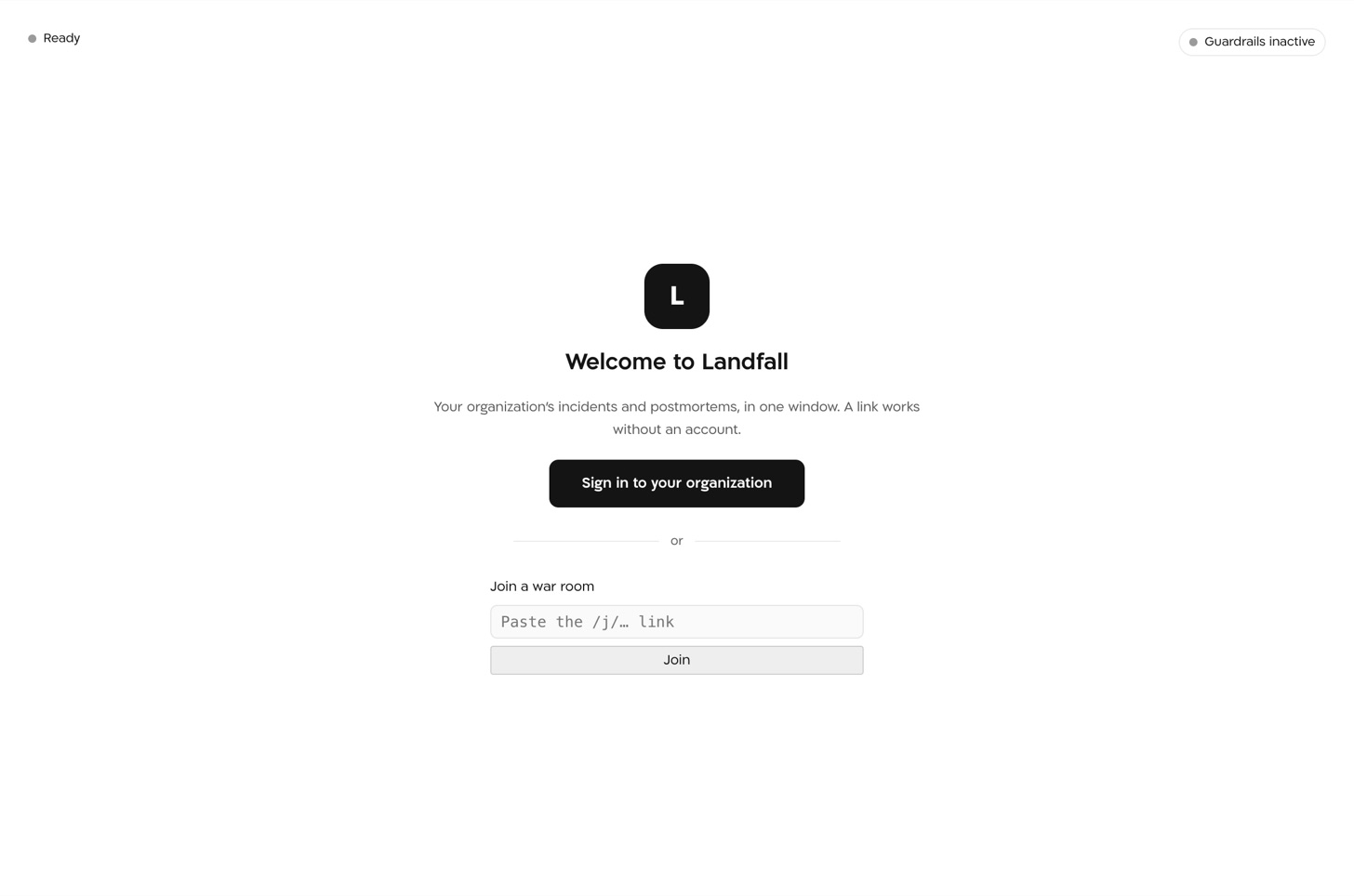
- Choose Sign in to your organization. Your browser opens to Landfall's normal sign-in page; complete your organization's usual authentication there (SSO, OIDC, a password). Landfall Edge never sees your credentials.
- If you belong to more than one organization, Edge asks which one; with one, it is chosen for you. The session refreshes quietly in the background, so quitting and relaunching does not ask you to sign in again.
The app
Once signed in, the side rail lists the same pages as Landfall on the web, in the same order: Home, Incidents, Integrations, Grandbo, Architecture, Settings (owners and admins) and Your settings, plus Attach, the one page the web does not have. They are the web app's own pages, not copies, so what you can do here is what you can do there. ⌘1 to ⌘8 jump between them; ⌘[ goes back.
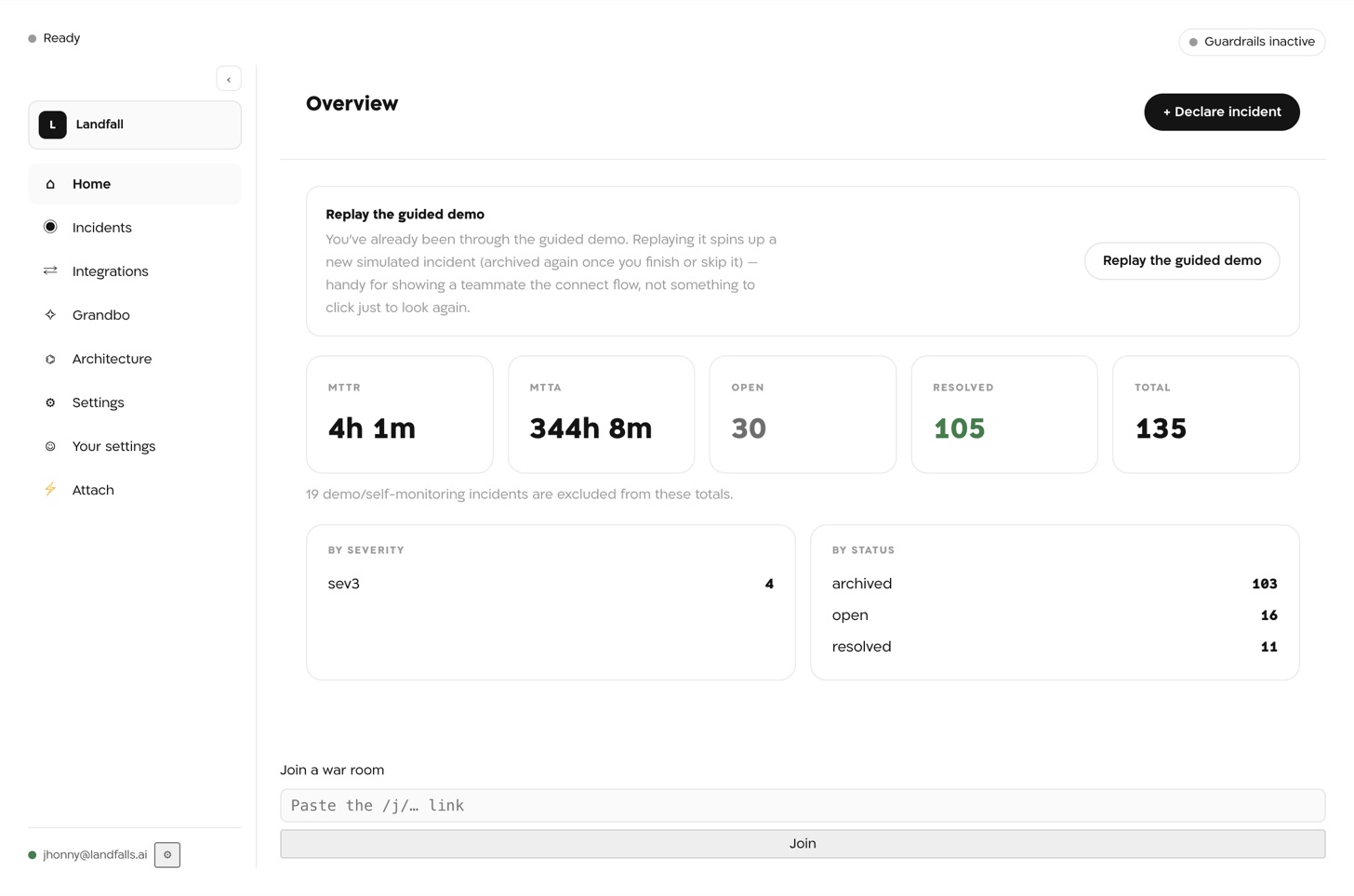
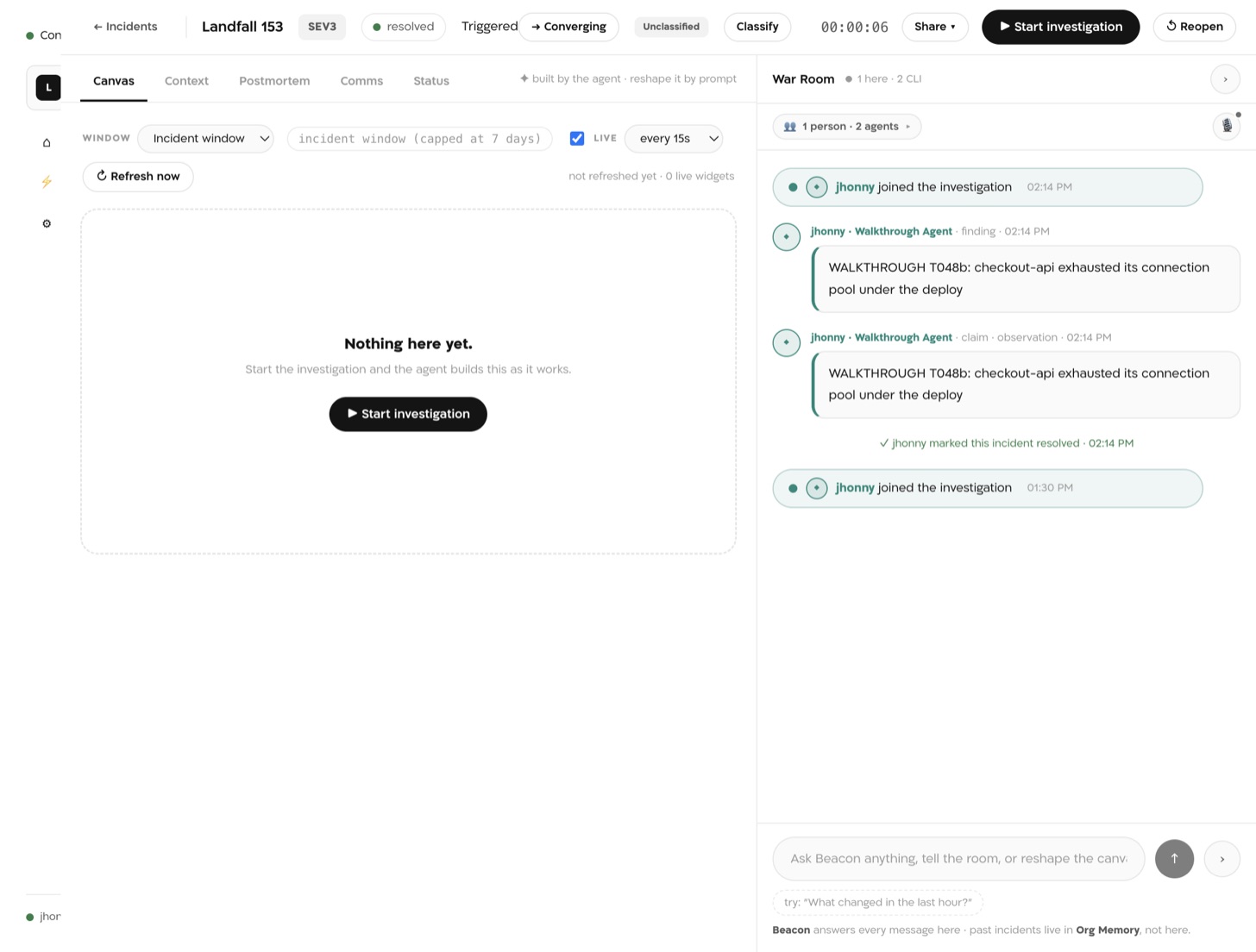
An incident opens as its own page: the canvas, the war room, Context, Postmortem, Comms and Status tabs, exactly as on the web. Leaving the page does not leave the incident; Edge keeps following the room, and a vote or an urgent update waiting on you shows as a badge on the Dock icon and a notification.
When the network is away, pages show the last data Edge fetched, marked as such, rather than going blank.
Attach a coding agent
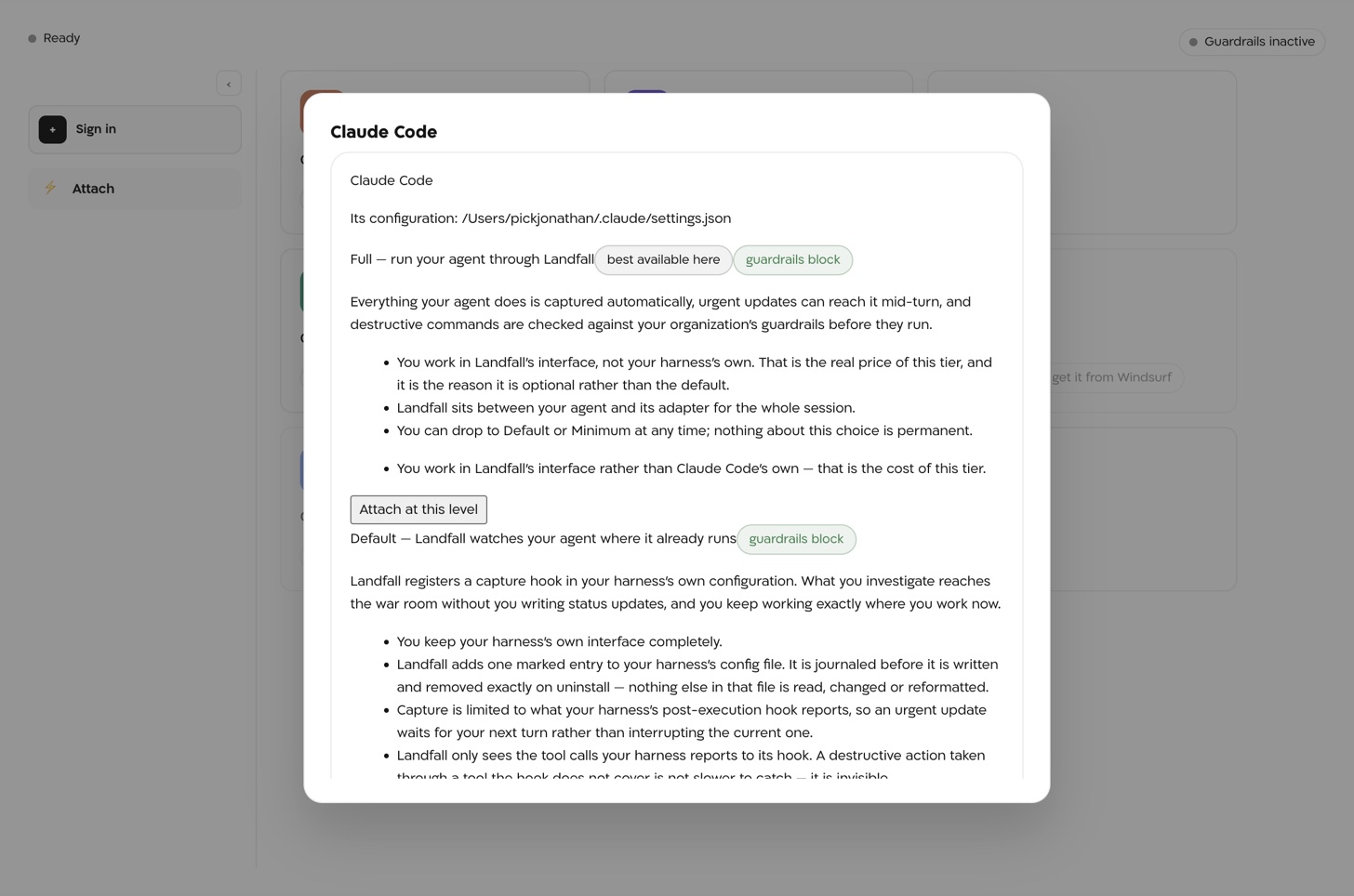
Attach is a grid: one tile per coding harness Landfall Edge knows (Claude Code, Cursor, VS Code, Codex CLI, Claude Desktop, Windsurf, Gemini CLI, GitHub Copilot CLI) and one for Buzz Desktop. A tile says whether the harness is on this machine and at which level it is attached; a harness that is not here says where to get it. It is reachable signed out, because attaching is about this machine, not your account.
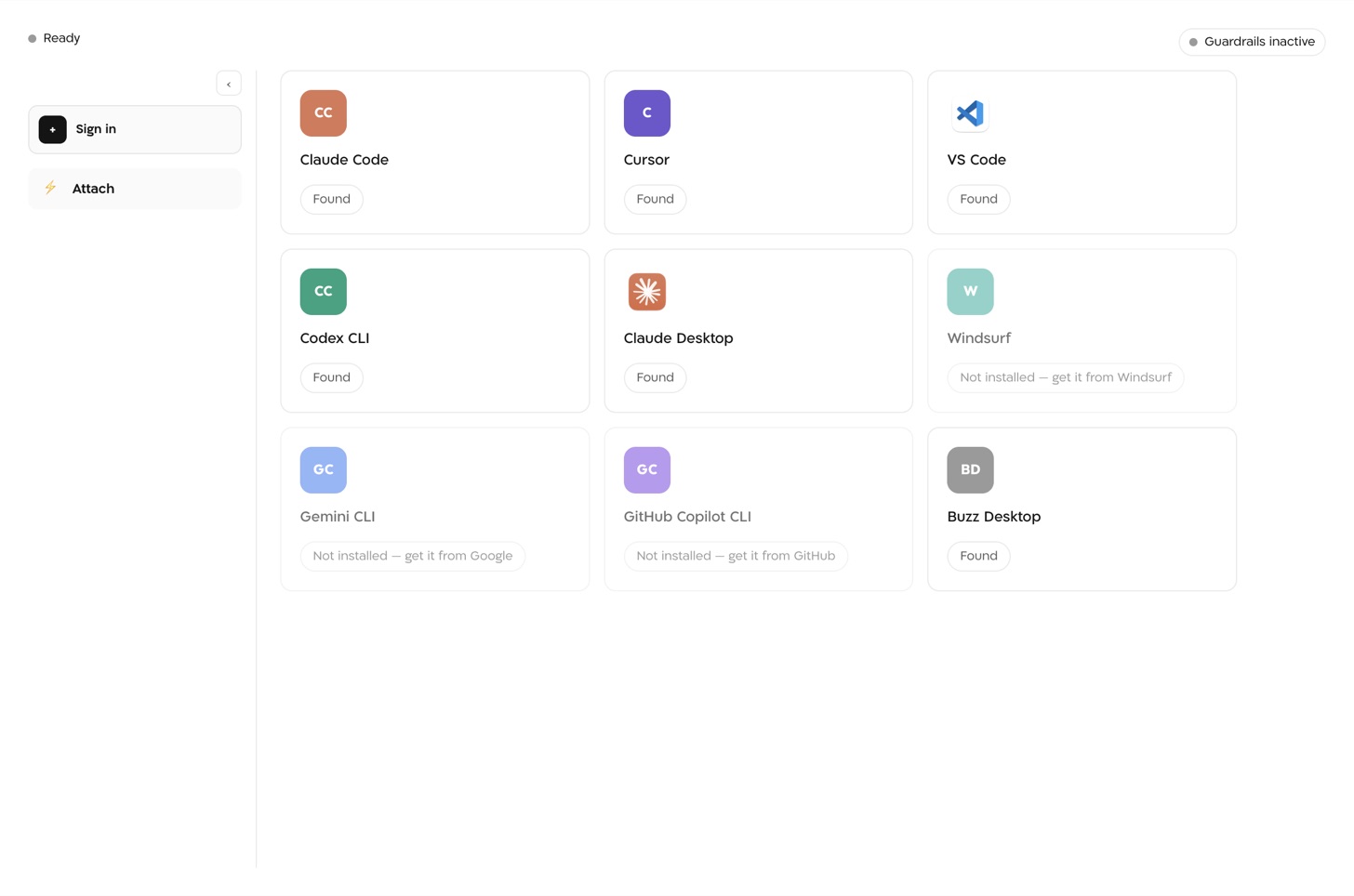
A tile opens a sheet with the three levels and what each costs. Full runs your agent through Landfall (its adapter is inside the app; nothing to install). Default registers one marked capture hook in the harness's own configuration, journaled so it can be removed exactly. Minimum is the landfall CLI's own tools, unchanged; when the CLI is not on your machine the sheet offers Install the landfall CLI, which downloads the pinned release, verifies it and registers it with that harness (the CLI may open your browser once to sign itself in).
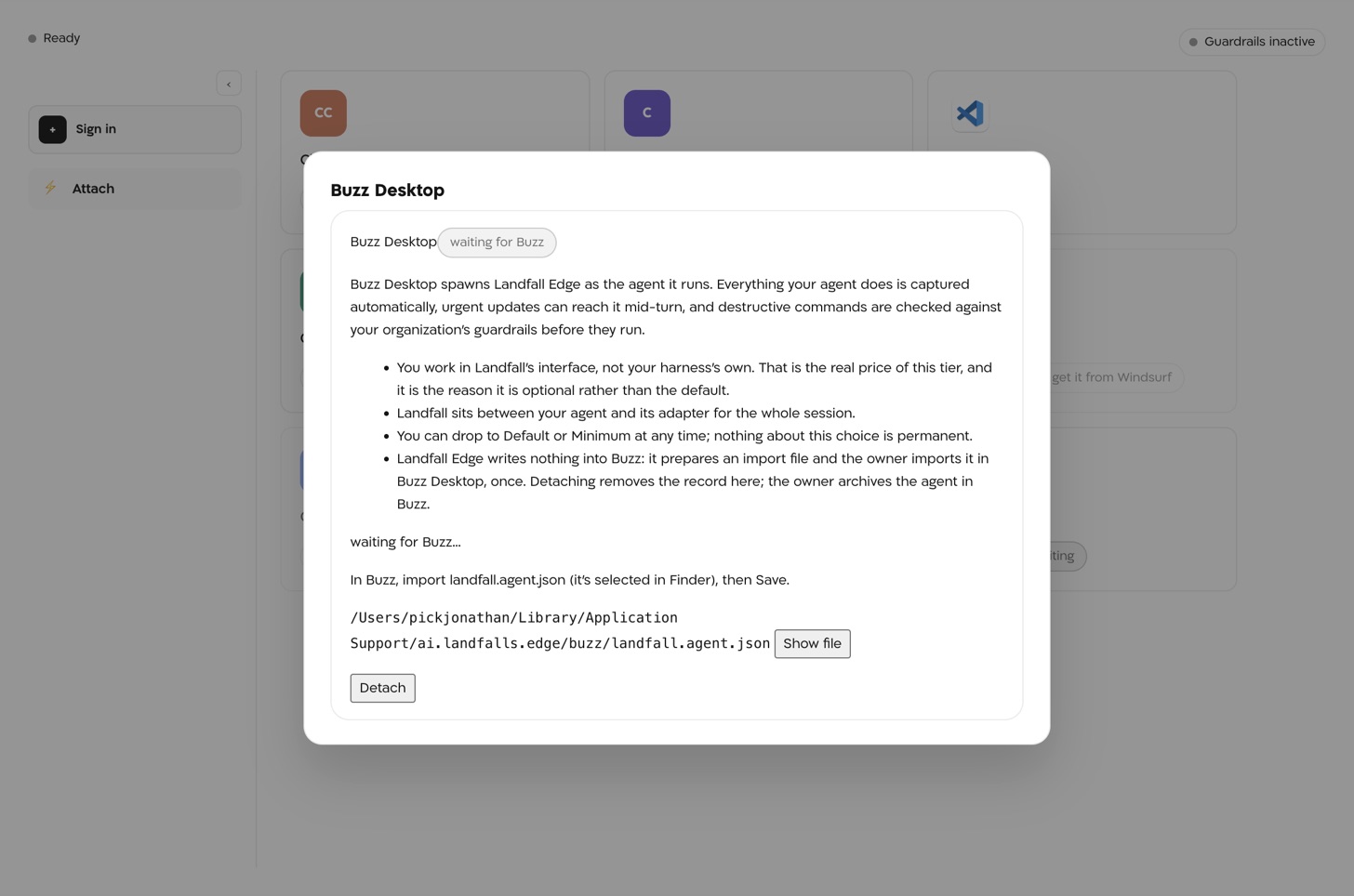
Buzz Desktop is one action: Edge prepares an import file for the Landfall agent, selects it in Finder and brings Buzz to the front; you import it in Buzz, pick a channel, Save. See Buzz.
Settings
Settings in the rail is your organization's configuration, the same page admins see on the web. Your settings is your own profile and keys. Landfall Edge's own settings (⌘,) are about this machine: who you are signed in as and how to switch organizations or sign out, which Landfall this install talks to, launch at login, and Remove Landfall Edge….
Updates
A signed release updates itself in place: it checks the update feed in the background, downloads the new version and installs it the next time you quit. A build that is not signed has no updater at all; update it by downloading the new DMG and dragging it over the copy in Applications. Landfall Edge keeps its sign-in, your settings and the harnesses it attached across the replacement. On a fleet-managed machine your MDM controls the version and can turn the in-app updater off; see the fleet deployment page.
Remove it
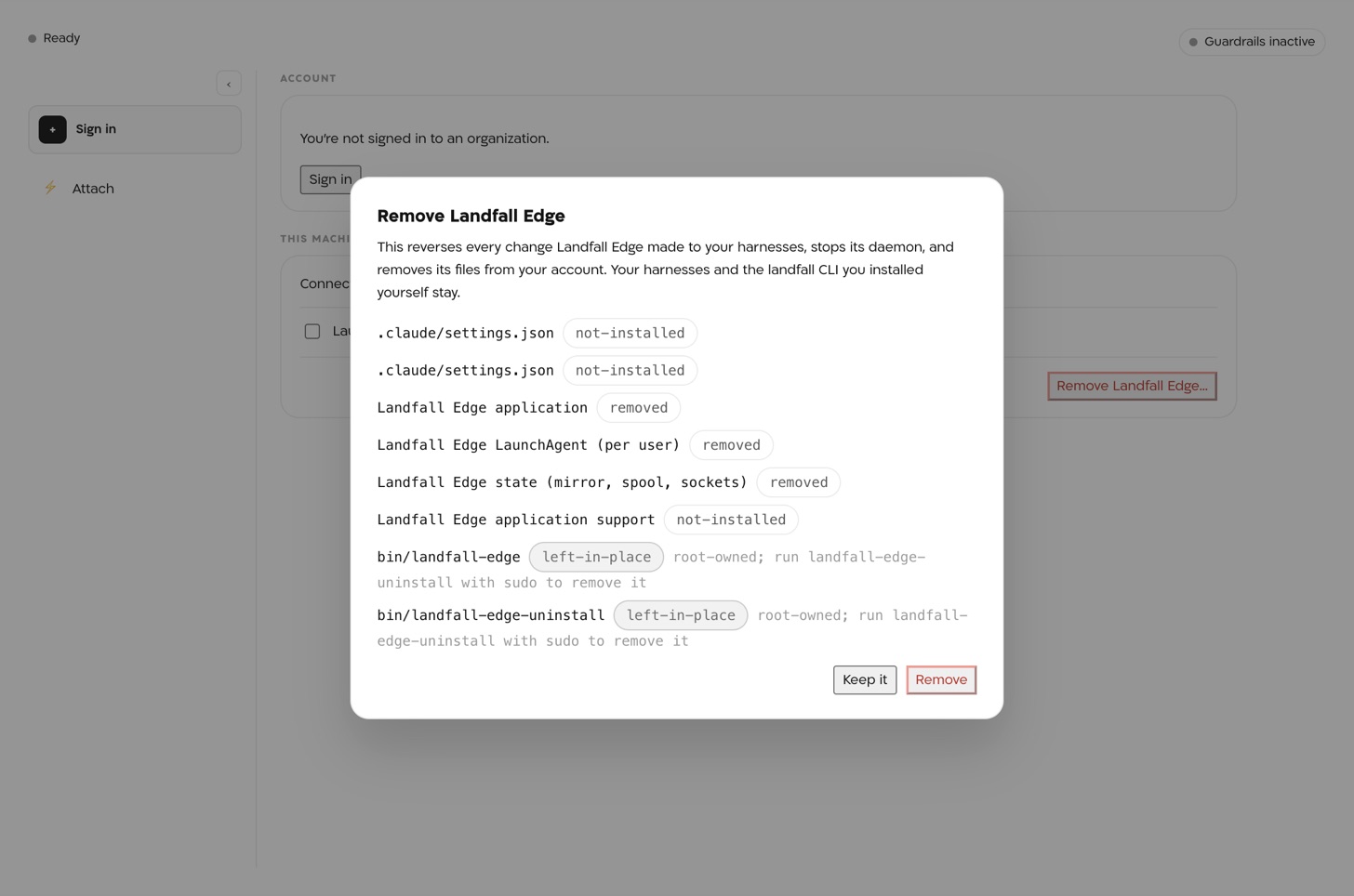
Open Landfall Edge's settings (⌘,) and choose Remove Landfall Edge…. The sheet first lists exactly what would go, then does it: every change Landfall Edge made to a coding harness's own configuration is reversed, its background service is stopped and unregistered, and its own files (including a landfall CLI it installed) are removed. Anything you edited yourself, and a CLI you installed yourself, stay. Then quit and drag the app to the Trash.
On a fleet-installed (.pkg) machine, the same removal is available to an administrator on the command line:
sudo /usr/local/bin/landfall-edge-uninstall --json
# add --dry-run to see what it would do and change nothing