
Organization and personal settings
Landfall keeps two settings areas apart. Organization settings belong to the organization and are reachable only by its owners and admins. Your settings belong to you and are reachable by every member. Nothing you can reach from one area changes the other.
What you'll need
- A member account in your Landfall organization, for Your settings.
- The owner or admin role, for Organization settings and the audit log.
Who sees what
| Your role | In the left menu | Organization settings | Your settings |
|---|---|---|---|
| Owner or admin | Settings and Your settings | Members, Sign-in and SSO, Workflows, Maintenance windows, Governance, Agent instructions, Audit log | Profile, Contact, Connected assistants, API keys |
| Billing admin, responder, viewer | Your settings only | A page saying the settings are managed by your admins, with their names. No form. They can read the Agent instructions. | Profile, Contact, Connected assistants, API keys |
| Guest or coding-agent session | Neither | Not reachable | Not reachable |
The server enforces the same line regardless of what the app shows: every organization setting is refused for a session that is not an owner or admin. The app hides what cannot be used so nobody lands on a form they cannot save.
1. Manage your own settings
Open Your settings from the left menu. It has four tabs. These are yours: a coding assistant or a key you create acts as you, in the organization you are in, and an admin does not see or manage them from the organization area.
Profile
Your display name, your email, and a switch between the light and dark theme.
Contact
How Landfall should reach you when you are on call: a mobile number (start it with + and your country code), your time zone, an optional second email, and the order to try Slack, email and phone. Only you and your organization's admins can see your phone number. It never appears in an incident, to an agent, or in a log, and it is deleted if you leave the organization.
A second email is used like your account email: when a page goes to it, the address is recorded as the destination. Calls and texts are not sent yet, so a page follows the next method in your list. If you have not set anything, pages behave as they always did. New members are asked once, on the invitation page, and see a reminder until they either save or choose Not now.
Connected assistants
The address to add to Claude, or another assistant that supports remote MCP connectors, for a read-only view of your incidents, with a Copy control. Each assistant you connected is listed by the name the app gave itself, with what it can do and when it was last used. Revoke disconnects it.
API keys
A personal, long-lived credential for scripts, CI jobs, or any headless use of the CLI, for when there is no browser around to sign in with.
Name the key, then click New key
Use a name that says where it will run, for example ci-nightly-report. You can have up to 10 active keys per organization.
Copy it from Your new API key
The full key, starting lf_key_, is shown once, in this dialog. Click Copy, store it wherever your script or CI system keeps secrets, then click Done. The list afterwards shows only its last four characters.
Revoke it when it is no longer needed
Click Revoke beside the key. It stops working on the very next request. A key also stops working once its owner is no longer an active member of the organization.
How to present a key to the API is on the CLI reference.
2. Configure the organization
Open Settings from the left menu. The sections are listed in a navigation beside the page, in four groups: People and access (Members, Sign-in and SSO), Incidents (Workflows, Maintenance windows, Governance), Agents (Agent instructions) and Records (Audit log). When the window is narrow the navigation becomes a menu button above the section. The open section is part of the page address.
Members
Invite your team by email with a role, and see pending and recent invitations. Until the guided demo is finished, this section first offers to start the tour or skip it.
Sign-in and SSO
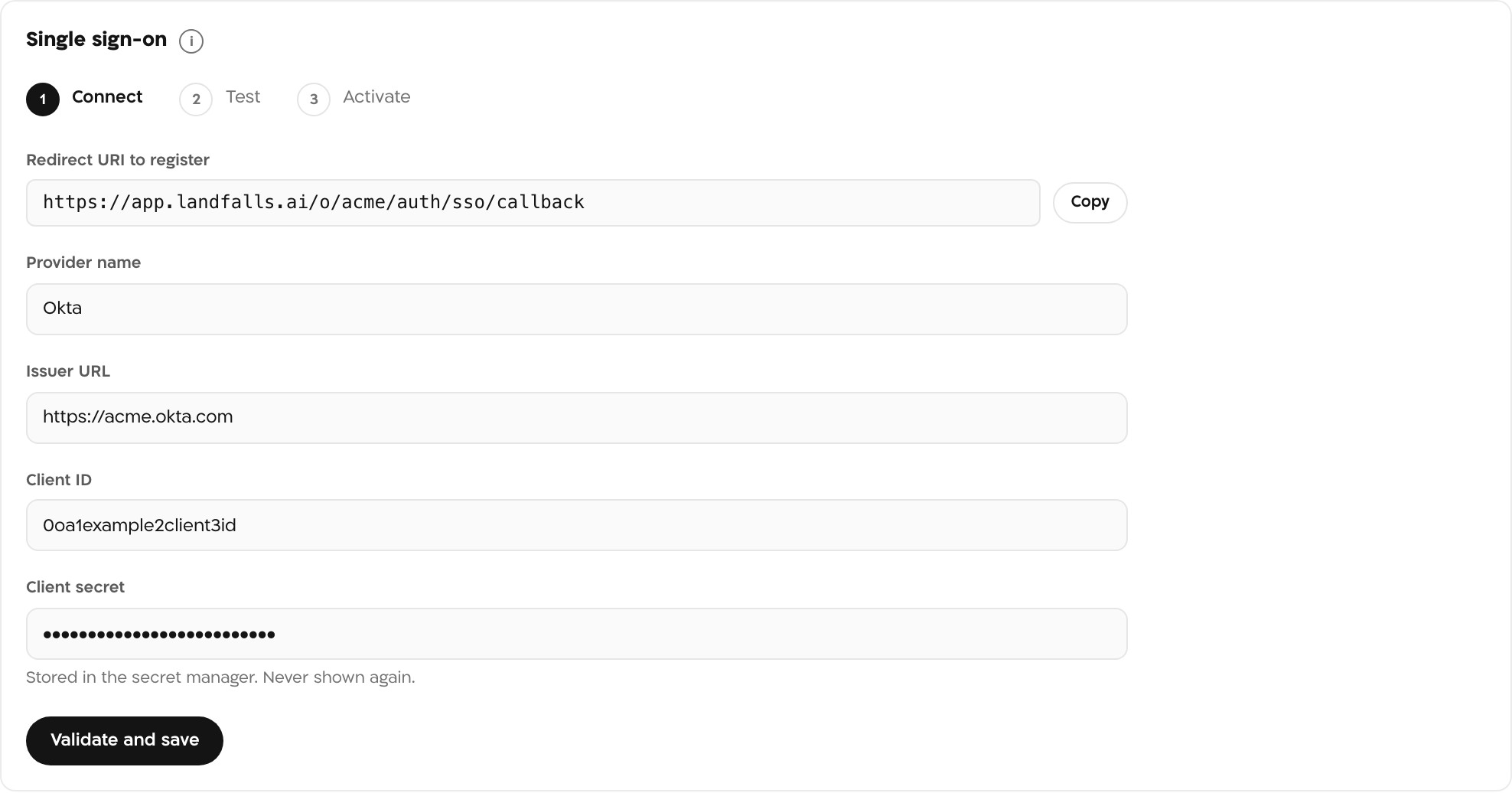
The Guest access switch: when it is on, people without a Landfall account can join a war room as named guests through a share link; when it is off, only signed-in members can join. The same section holds your own identity provider and verified email domains (where this Landfall deployment has customer federation turned on), SCIM provisioning, and the older Enterprise SSO setup for organizations that still use it. The owner always keeps a password sign-in, even when SSO is required, and every use of it is recorded in the audit log. Setup guides: Okta, Azure AD / Entra ID, Google Workspace, and any other OIDC and SCIM provider.
Maintenance windows
Silence automated alerts for a set time and scope, such as a nightly staging deploy, without disabling a whole integration. A person declaring an incident is never suppressed. The section also keeps a suppression history.
Governance
How findings enter the shared context: the admission gate, whether admins may admit an item directly with a recorded reason, how retractions are delivered, and what happens to questions nobody answers. See Shared context.
Workflows
What happens automatically at each lifecycle stage of an incident (Triggered, Converge, Mitigate, Landfall): which connected integrations are queried, optionally scoped to how the incident was triggered.
Agent instructions
Your organization's guidance for the agents. It covers Beacon, Landfall's investigating agent, shown beside its default instructions and its fixed security rules, and the standing guidance every agent receives on every investigation, with per-component sections that reach an agent only while that component is pinned to the room. It controls tone and guidance only; it cannot grant an agent new tools or data. Each save is a new version and is audited. See What the investigation knows.
3. Review and export the audit log
Every security-relevant action in an organization is recorded: sign-in and SSO changes, invitations, settings changes, integration changes, trigger deliveries, and refused attempts that go through a service check (for example a member asking for the audit log). The Audit log section of Settings lists the entries newest first with when, the actor's name, the action, the target and the outcome.
Filter the log
Set any of From, To, Actor id, Outcome (allowed or denied) and Incident id, then click Apply. The filter is part of the page address, so a view can be shared with another admin.
Export CSV or JSON
Export CSV and Export JSON produce a file of the filtered entries, up to 10,000 per export; the page says when that cap was hit so you can narrow the filter. The export itself is recorded in the audit log, with the format, the filter and the number of entries, so reading the record is part of the record.
CSV columns: occurredAt, actorType, actorId, actorDisplayName, action, targetType, targetId, outcome, incidentId.
Check it worked
Changes to sign-in, governance, maintenance windows and the Agent instructions are recorded in the audit log, so after you save one, the newest entry names you, the action and its outcome.
Troubleshooting
- Settings says the organization settings are managed by your admins. Your role is not owner or admin. The page names the admins to ask.
- New key is refused. You already have 10 active keys in this organization. Revoke one first.
- An export says it hit its cap. It holds the newest 10,000 entries. Narrow the time range and export again for the rest.